Role Change Request
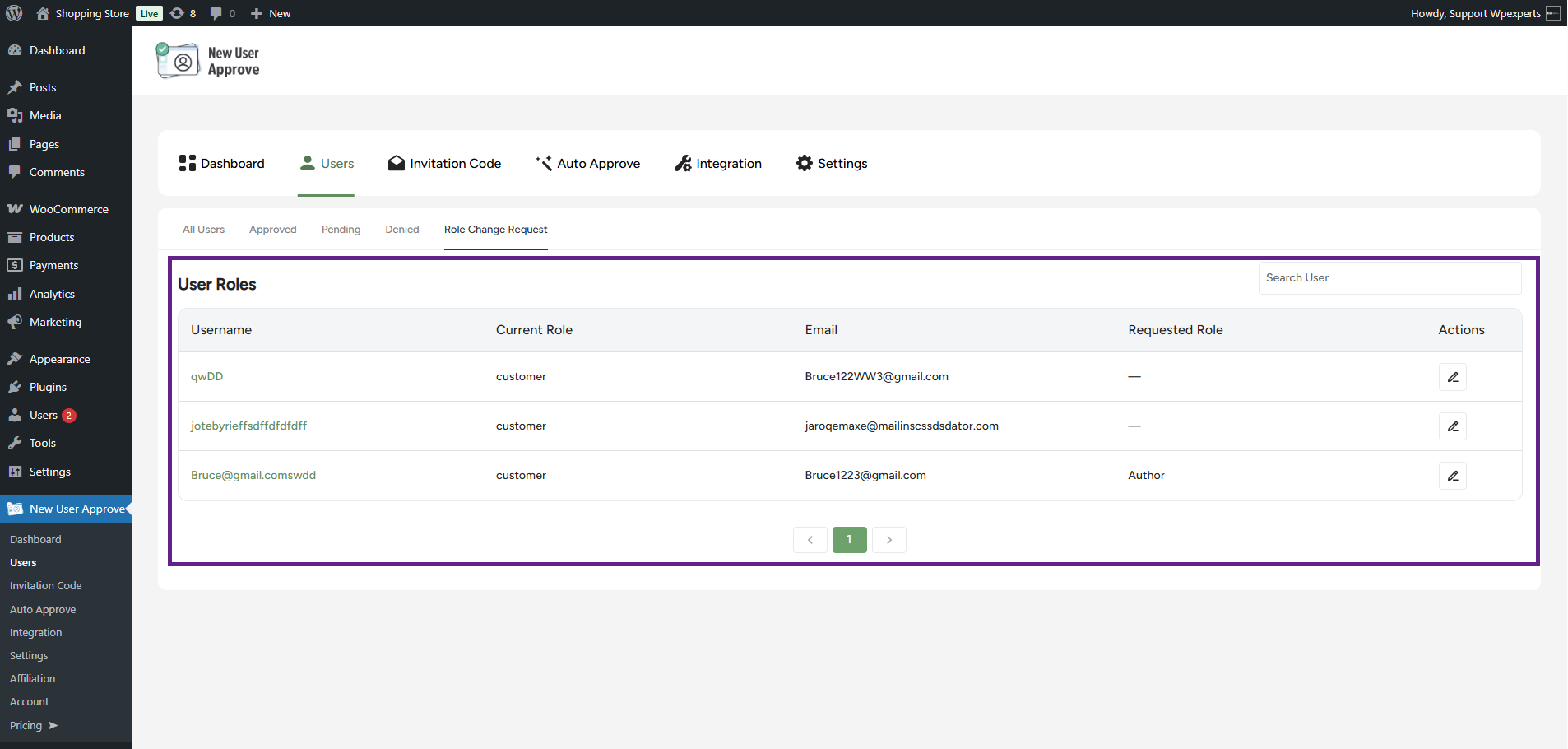
- In the Role Change Request sub-tab, the requests from users who want to change their role will be displayed here.
Note: All approved users will appear in this list.
Back-End
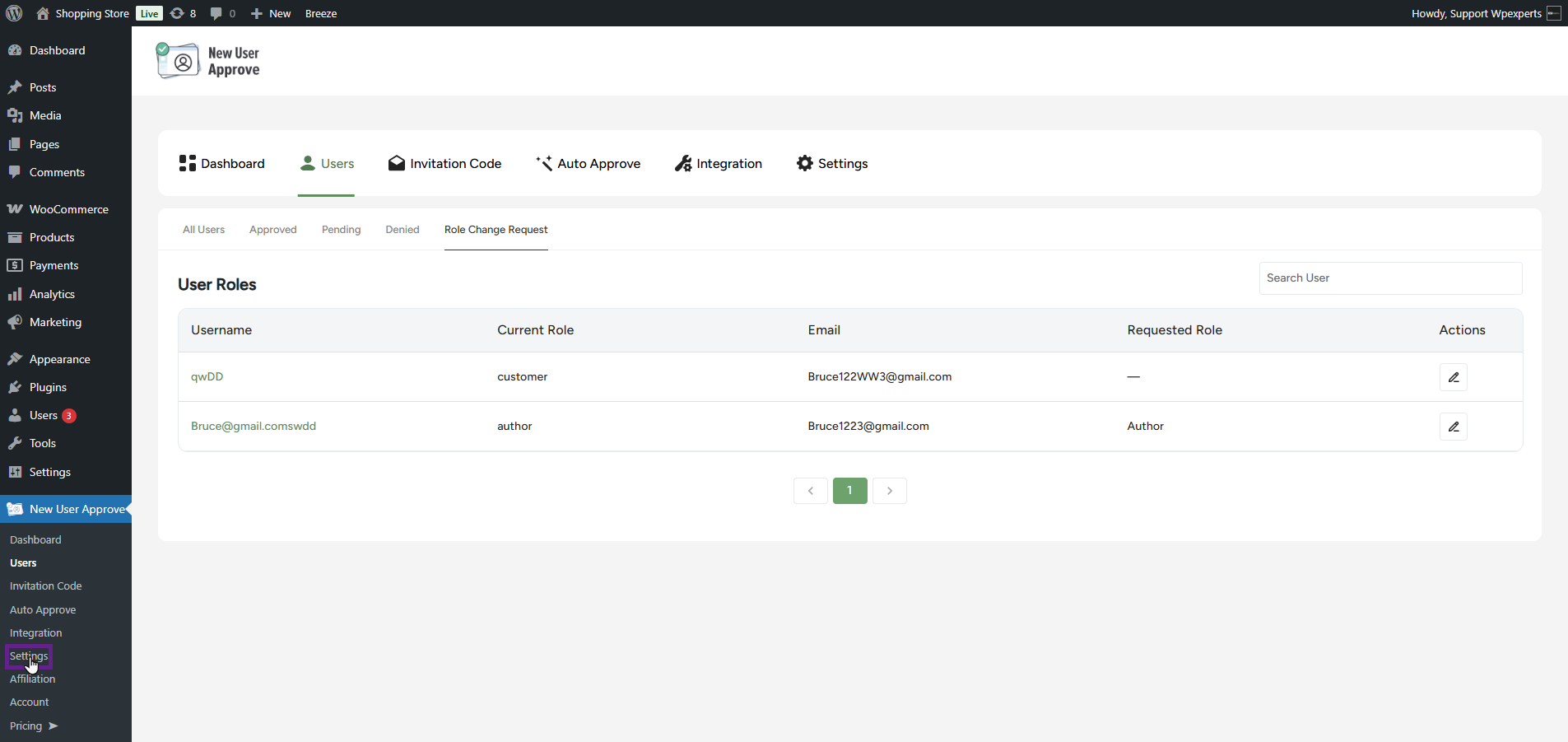
- Go to the Admin Dashboard > New User Approve > Settings.
- The admin will be directed to the General sub-tab. In the Role Management Settings section, activate the Allow User Role Change Request (My Account) toggle button.
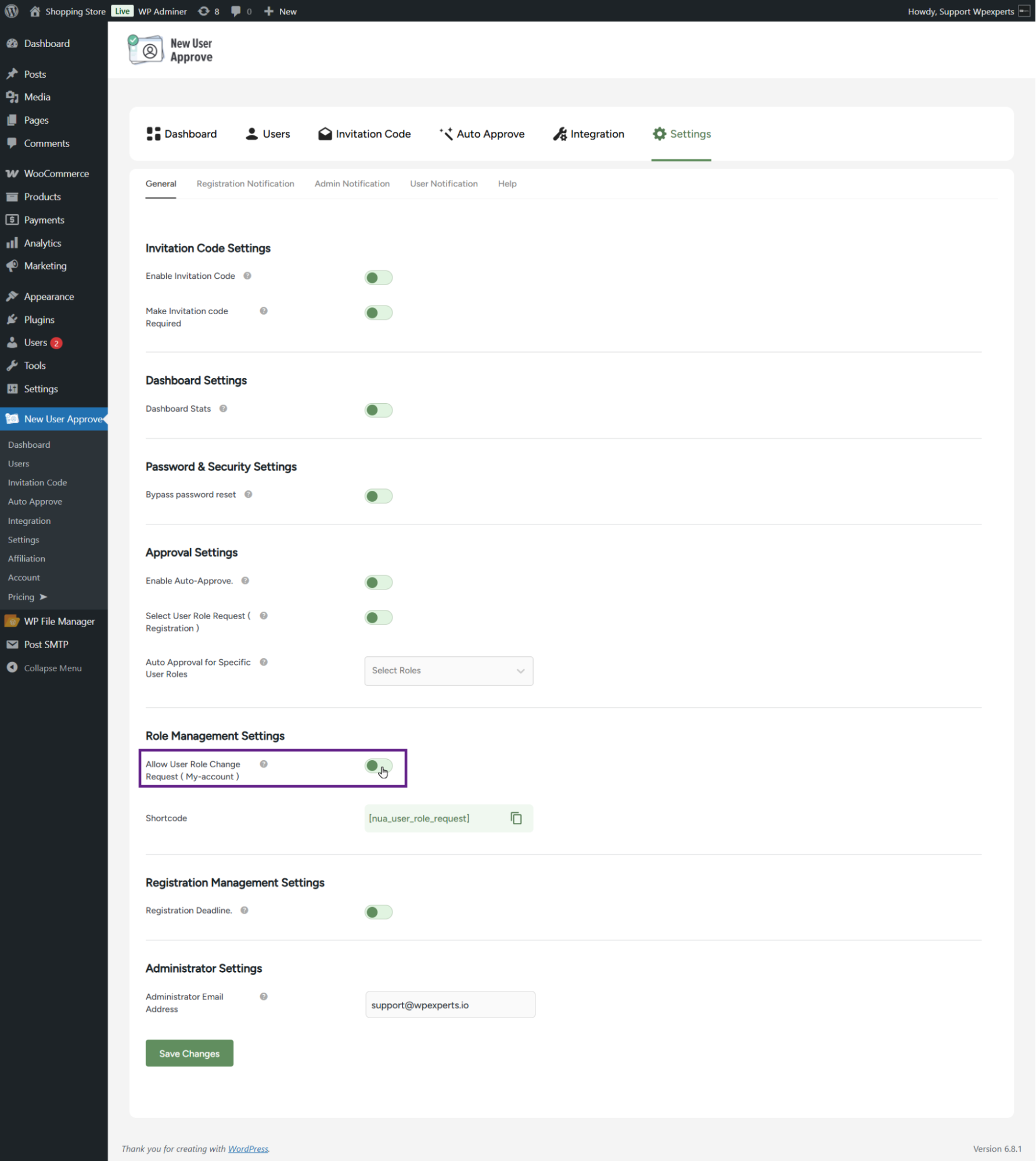
- A shortcode can also be used for this feature. Simply copy and paste the [nua_user_role_request] shortcode onto your desired page.

- Once done, click the Save Changes button.

System Impact (Front-End)
- Go to the website.
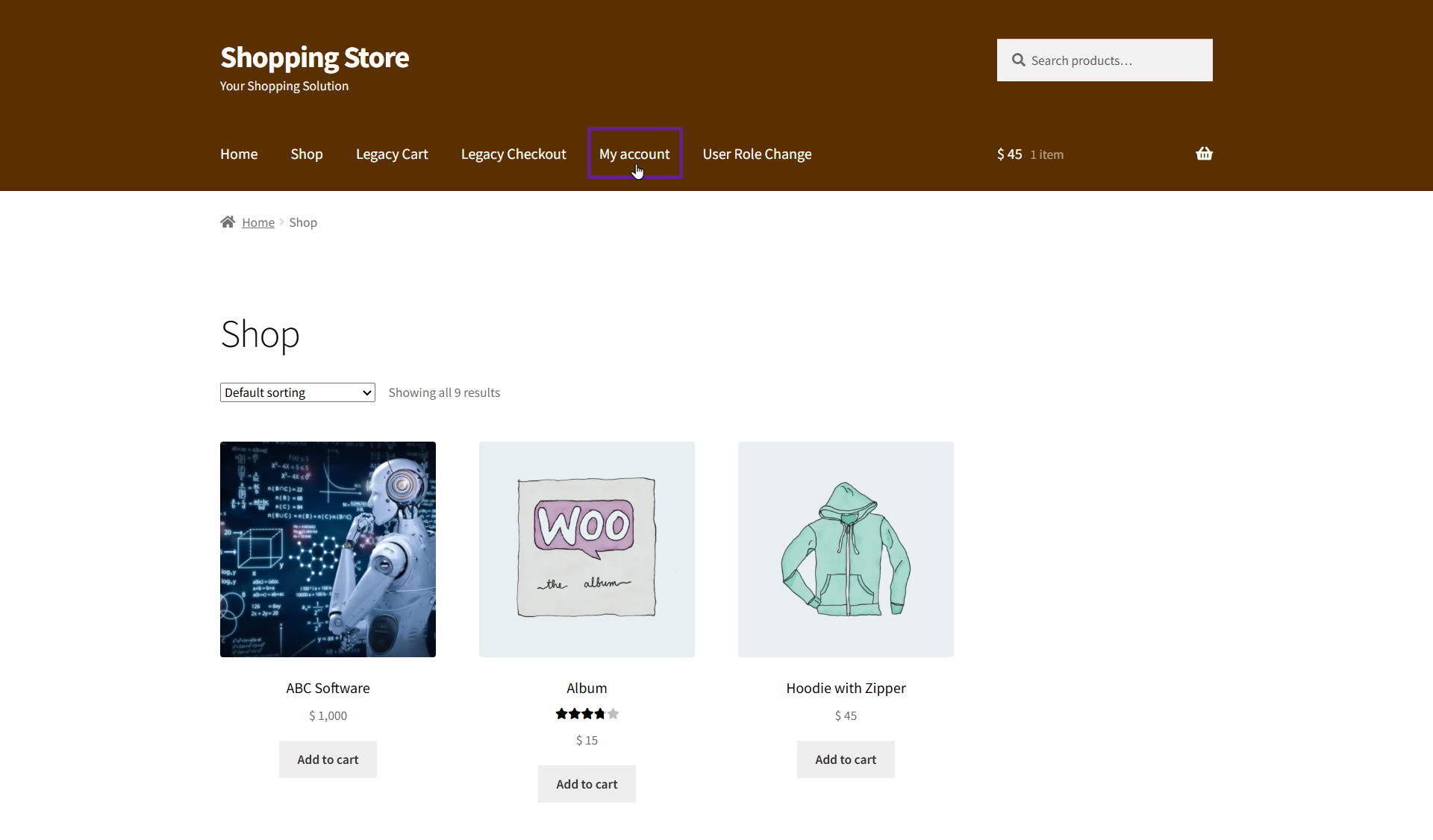
- Navigate to the My Account page.
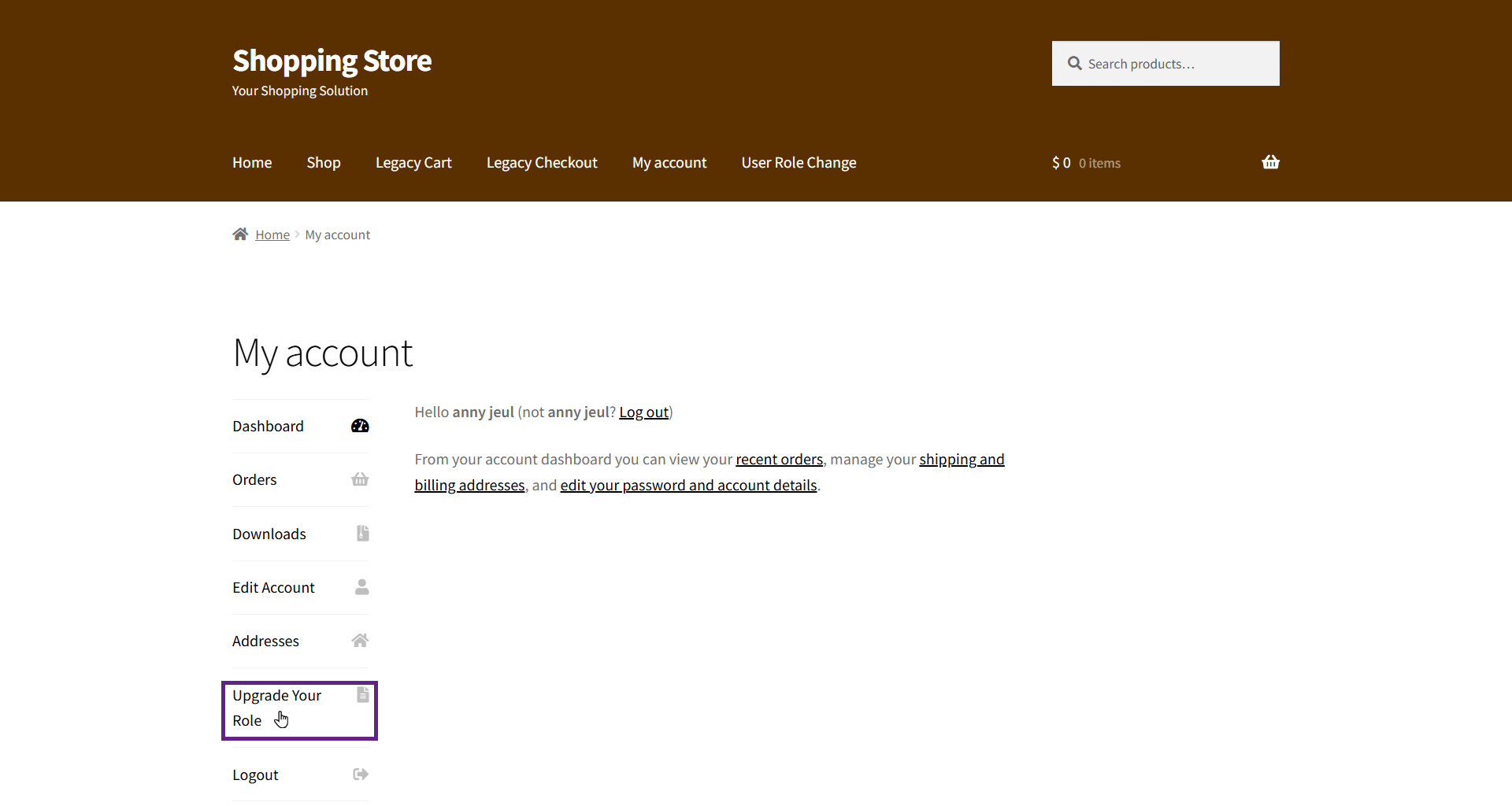
- Navigate to the Upgrade Your Role tab.
- Select your desired role and click the Submit button.
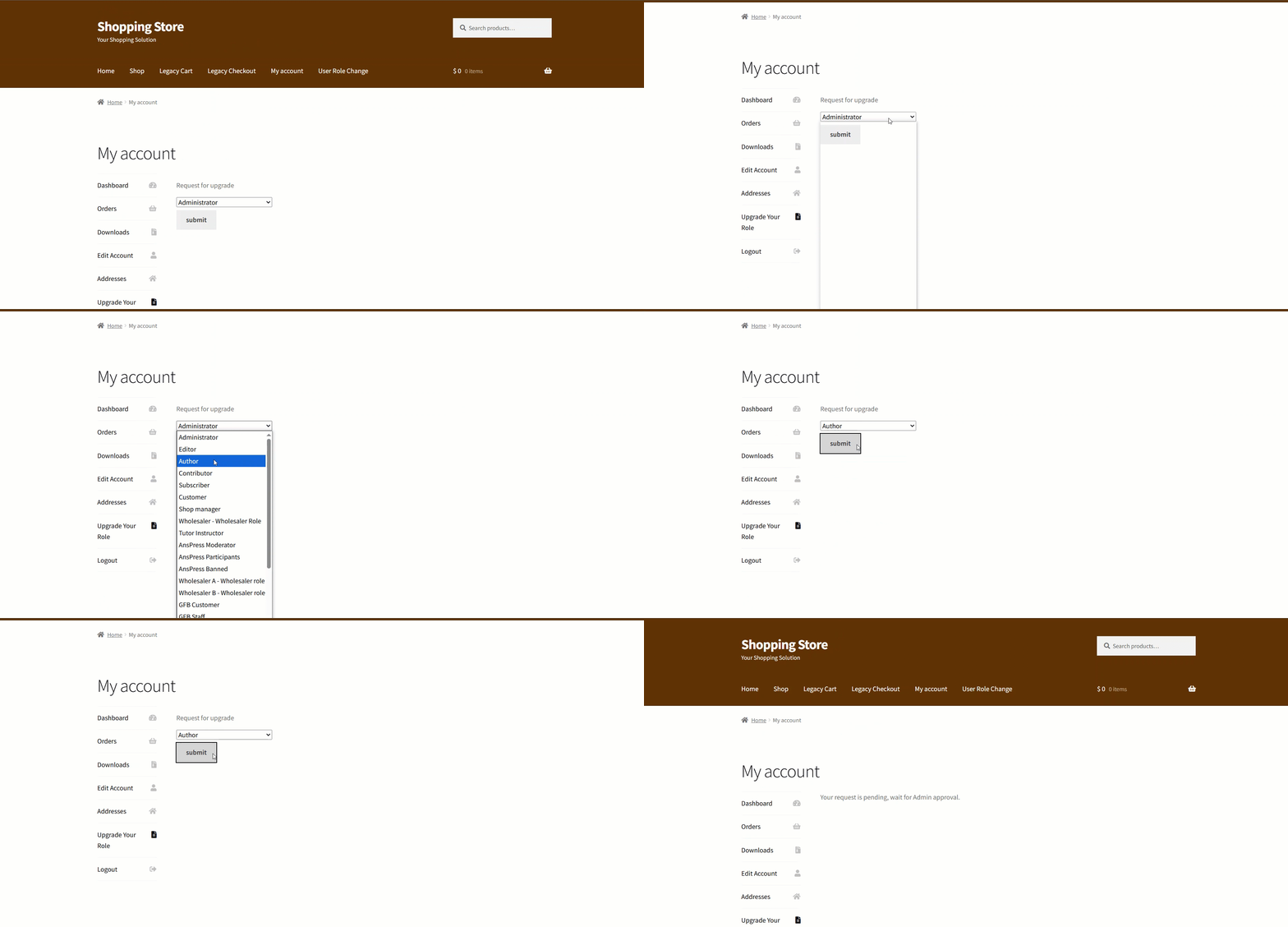
- This is how the user role change request will appear on a separate page when using the shortcode.

System Impact (Back-End)
- Now, navigate back to the Admin Dashboard and go to New User Approve > Users > Role Change Request.
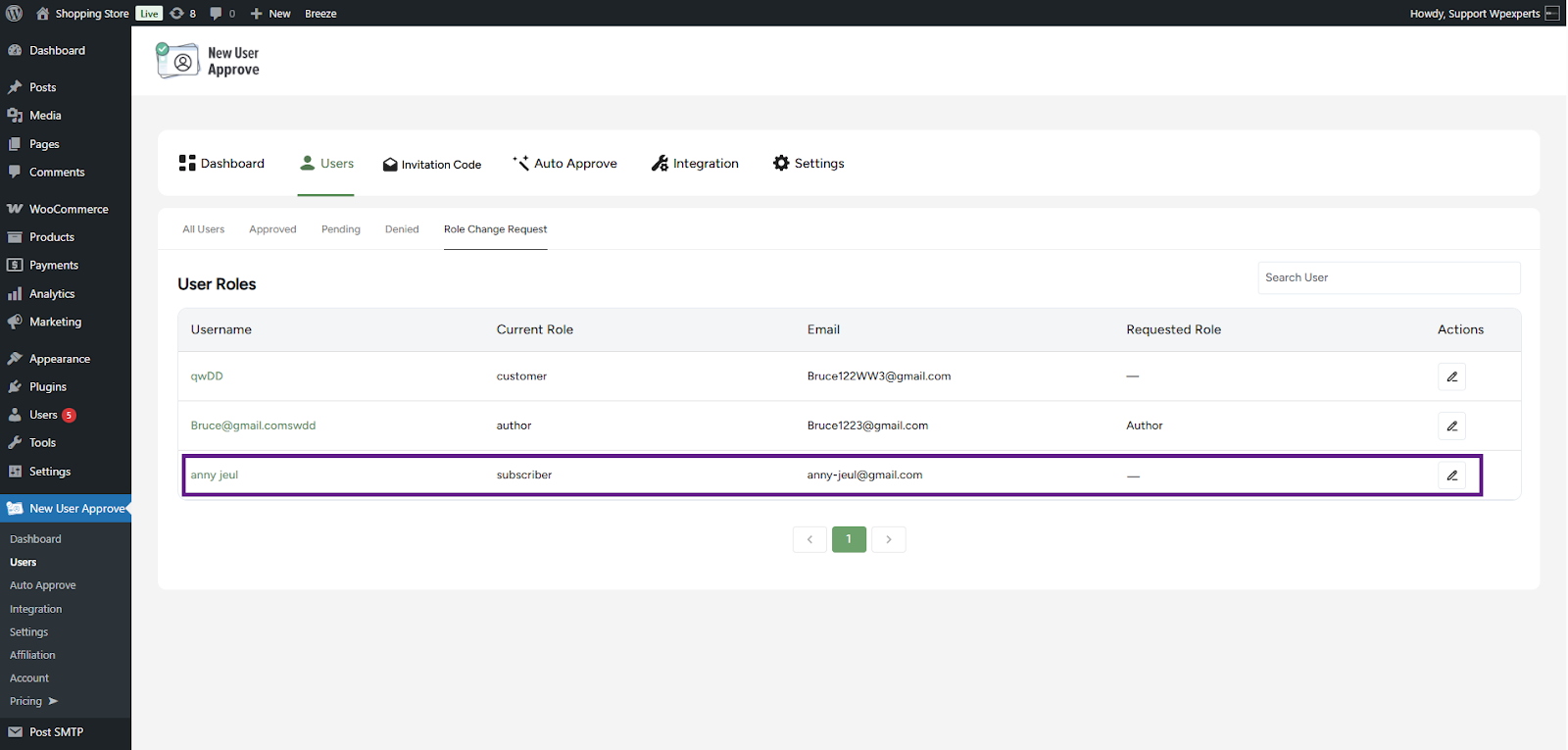
Before:
- The user’s current role is Subscriber, and no role change request has been submitted yet.
After
- As you can see, the user’s current role has now been requested to change to Author in the Requested Role column.
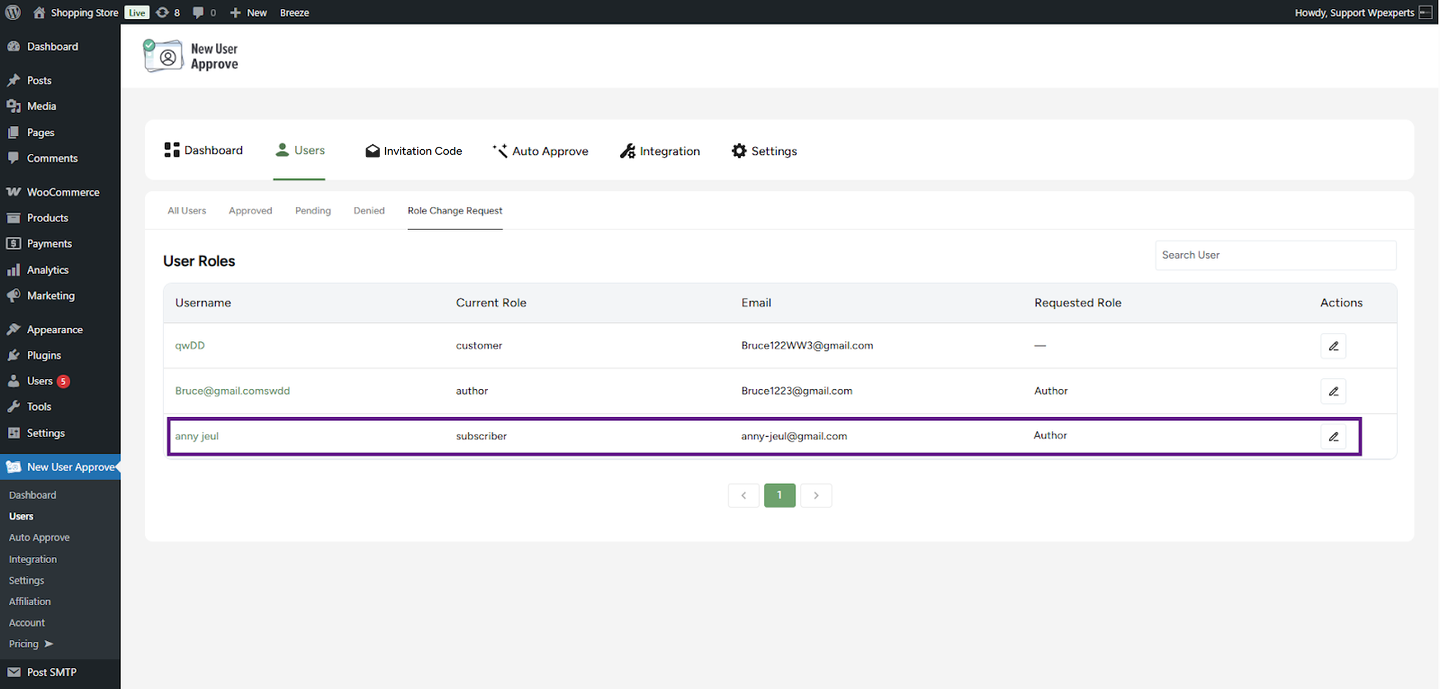
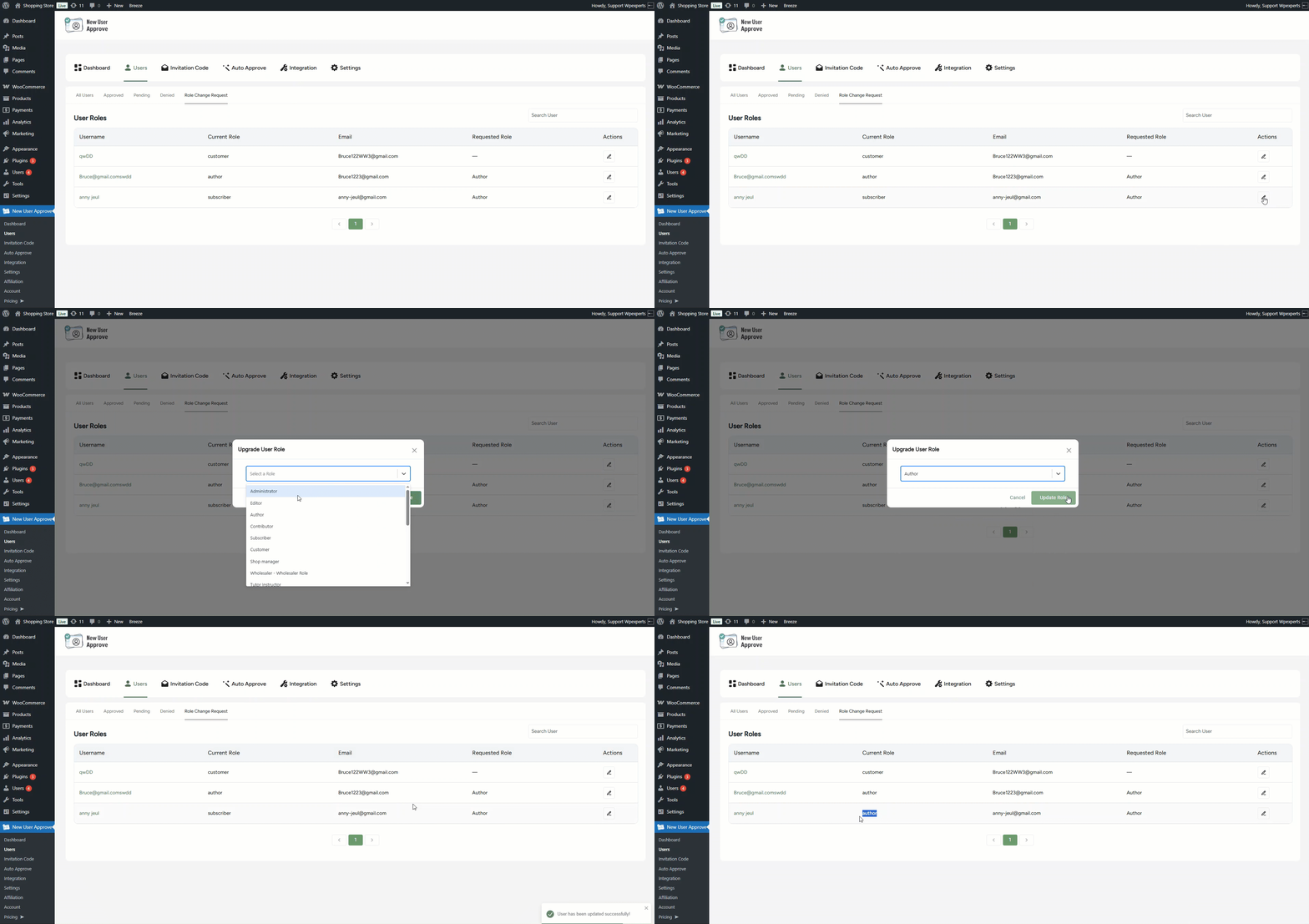
- The admin can easily change a user’s role by clicking the Edit icon. A pop-up window will appear, allowing the admin to modify the user’s role.