Block & Delete Users
From the Users tab you can permanently delete a user, or block them so they can never register again with the same email. Both actions live in the Actions column of every user list.
- Open the Users area. Go to New User Approve → Users in your WordPress admin.
- Choose a list. Open any list — Approved, Pending, or Denied. Each row’s Actions column has a red delete (trash) icon.

Delete a user
- In the Actions column, click the red Delete (trash) icon for the user you want to remove.

A confirmation dialog appears: “This user will be permanently deleted and you won’t be able to see it again.”
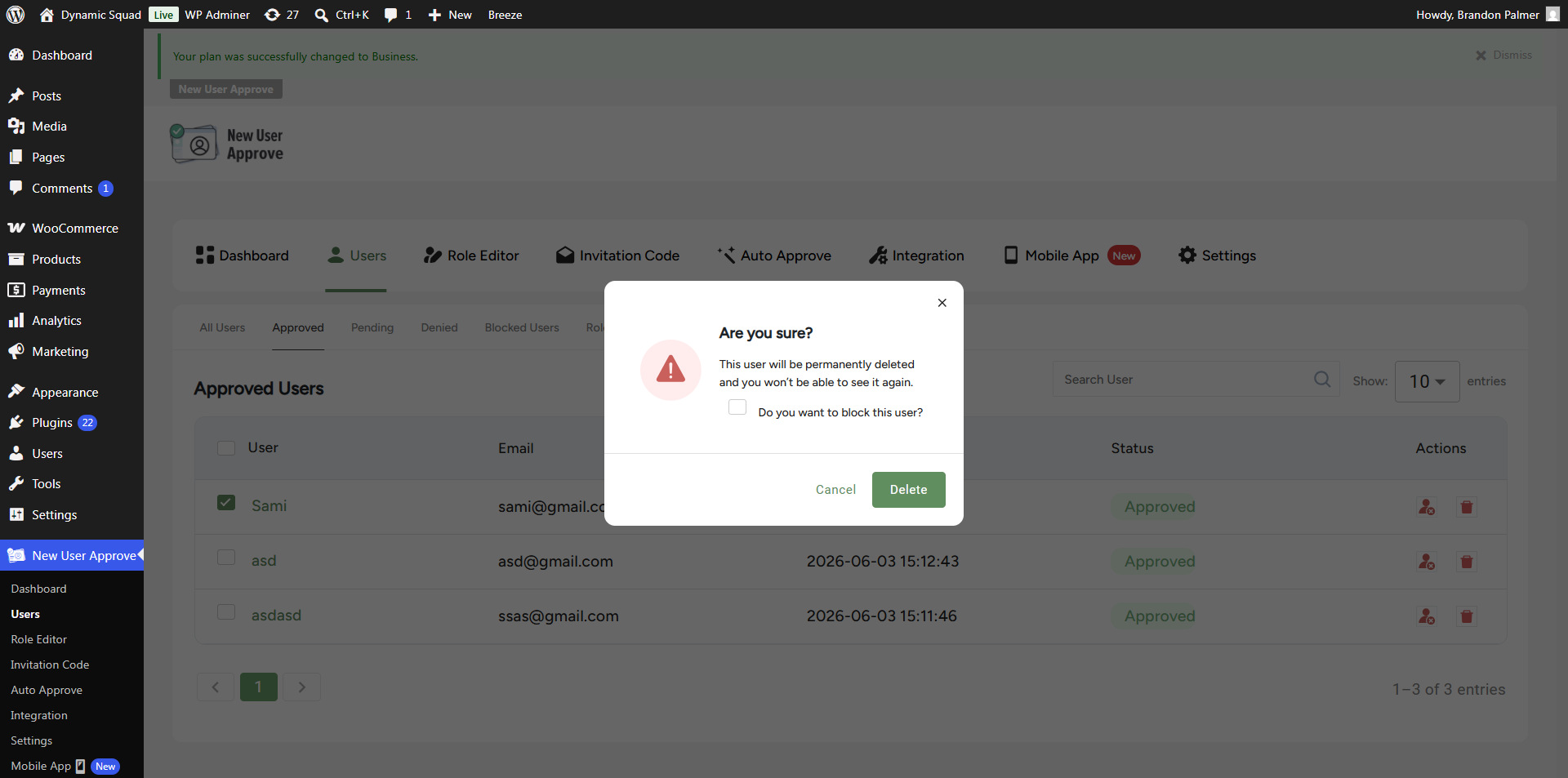
- Leave the “Do you want to block this user?” checkbox unchecked to delete only, then click Delete. The user is permanently removed.
Block a user
- To stop a user from signing up again with the same email, open the same delete dialog and tick the “Do you want to block this user?” checkbox.
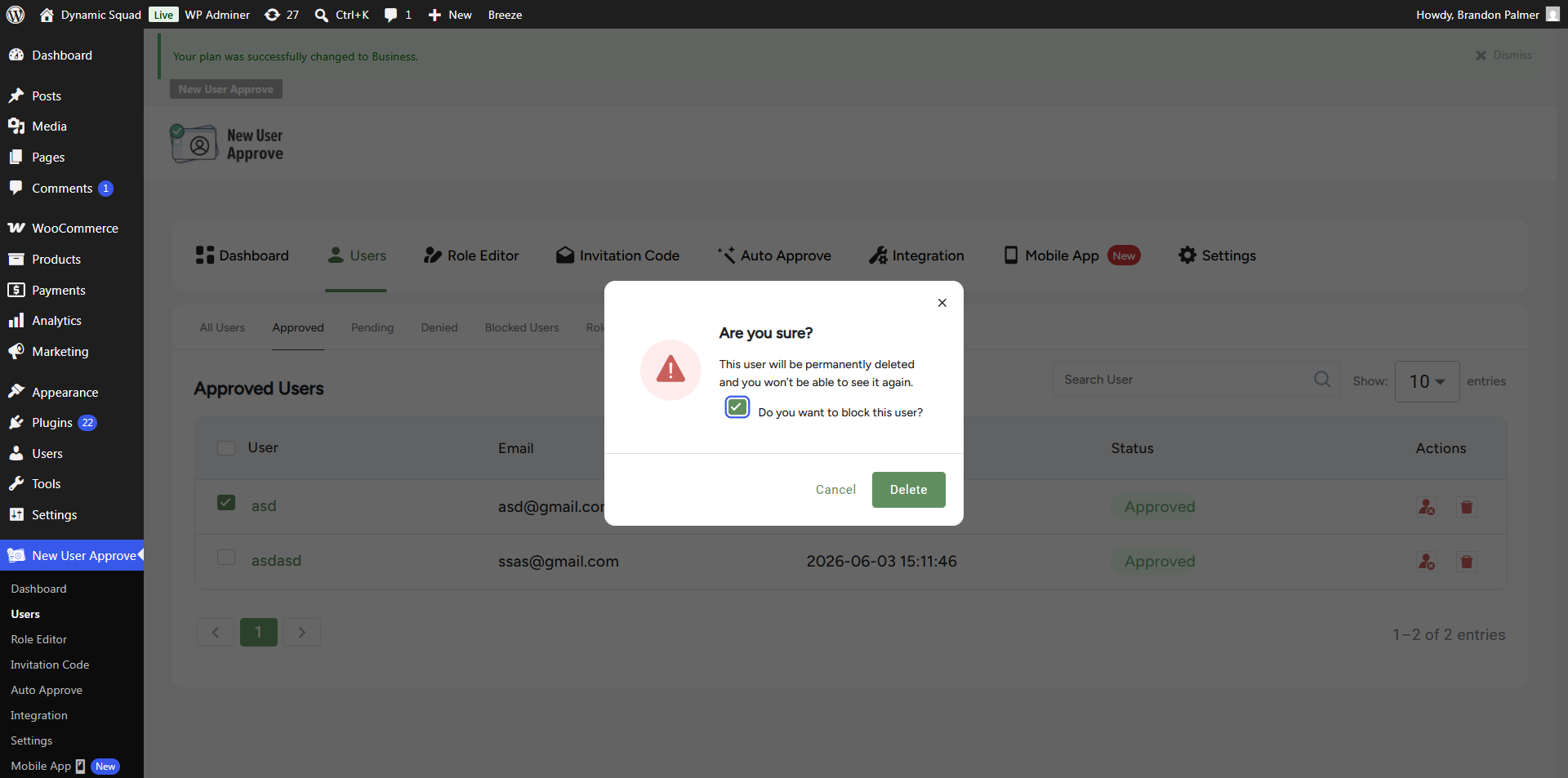
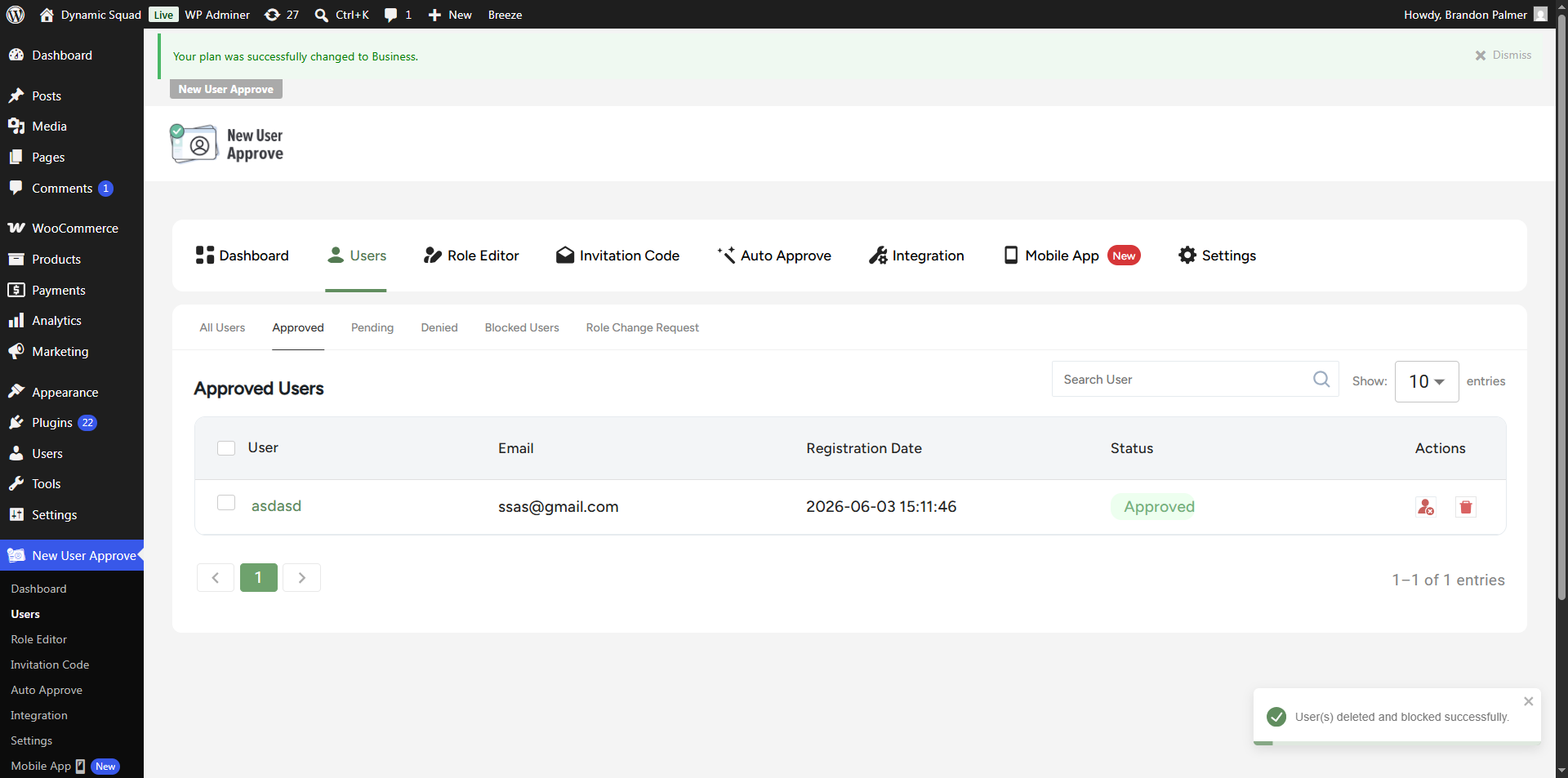
- Click Delete. The user is removed from the current list and added to the Blocked Users list.
- A confirmation message confirms the action: “User(s) deleted and blocked successfully.”
Blocked Users list
- Open the Blocked Users sub-tab to see every blocked account with its email, Blocked Date, and Blocked status. Navigate to Users → Blocked Users.

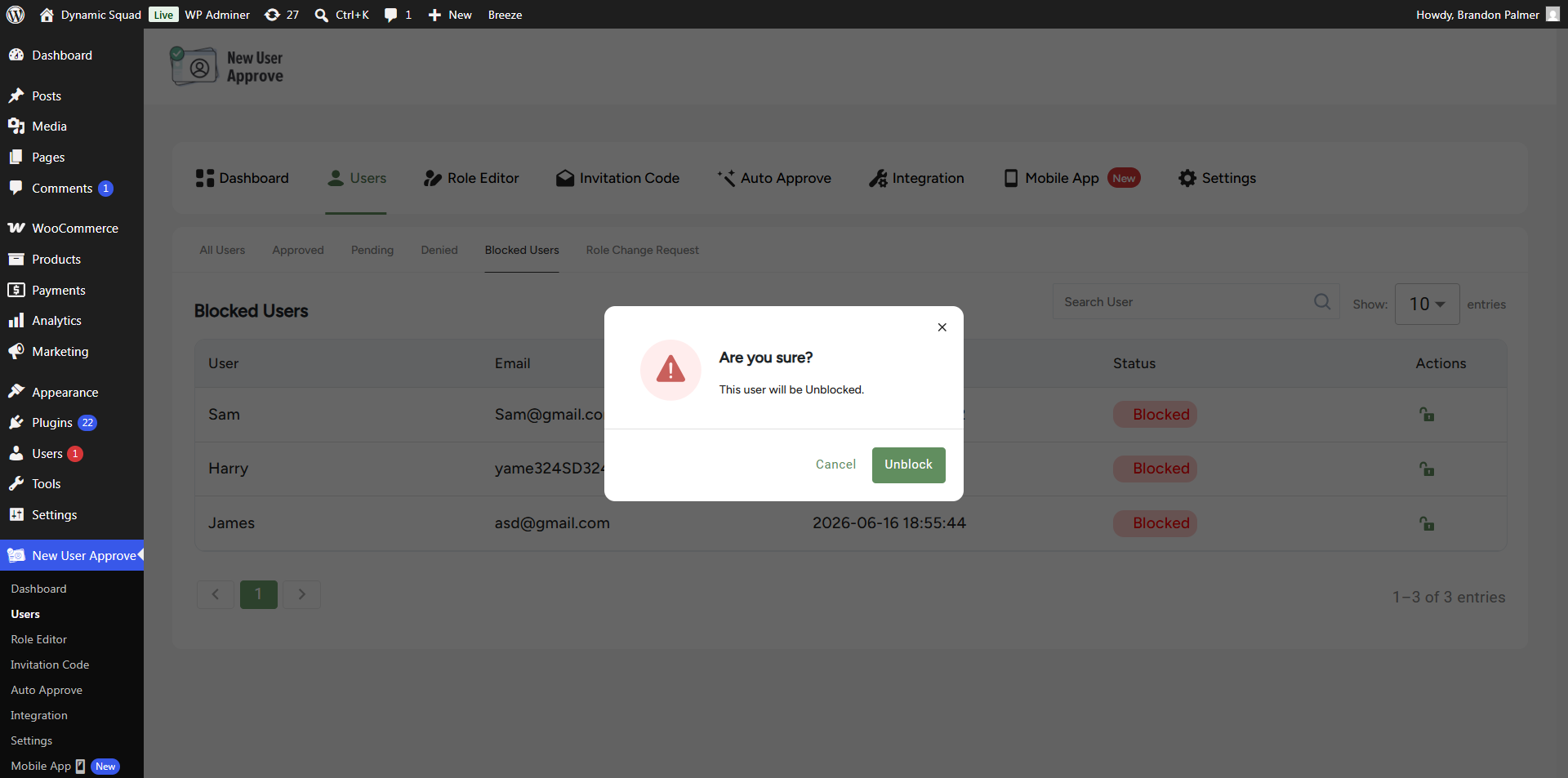
- Use the unblock icon in the Actions column to restore a user if needed.
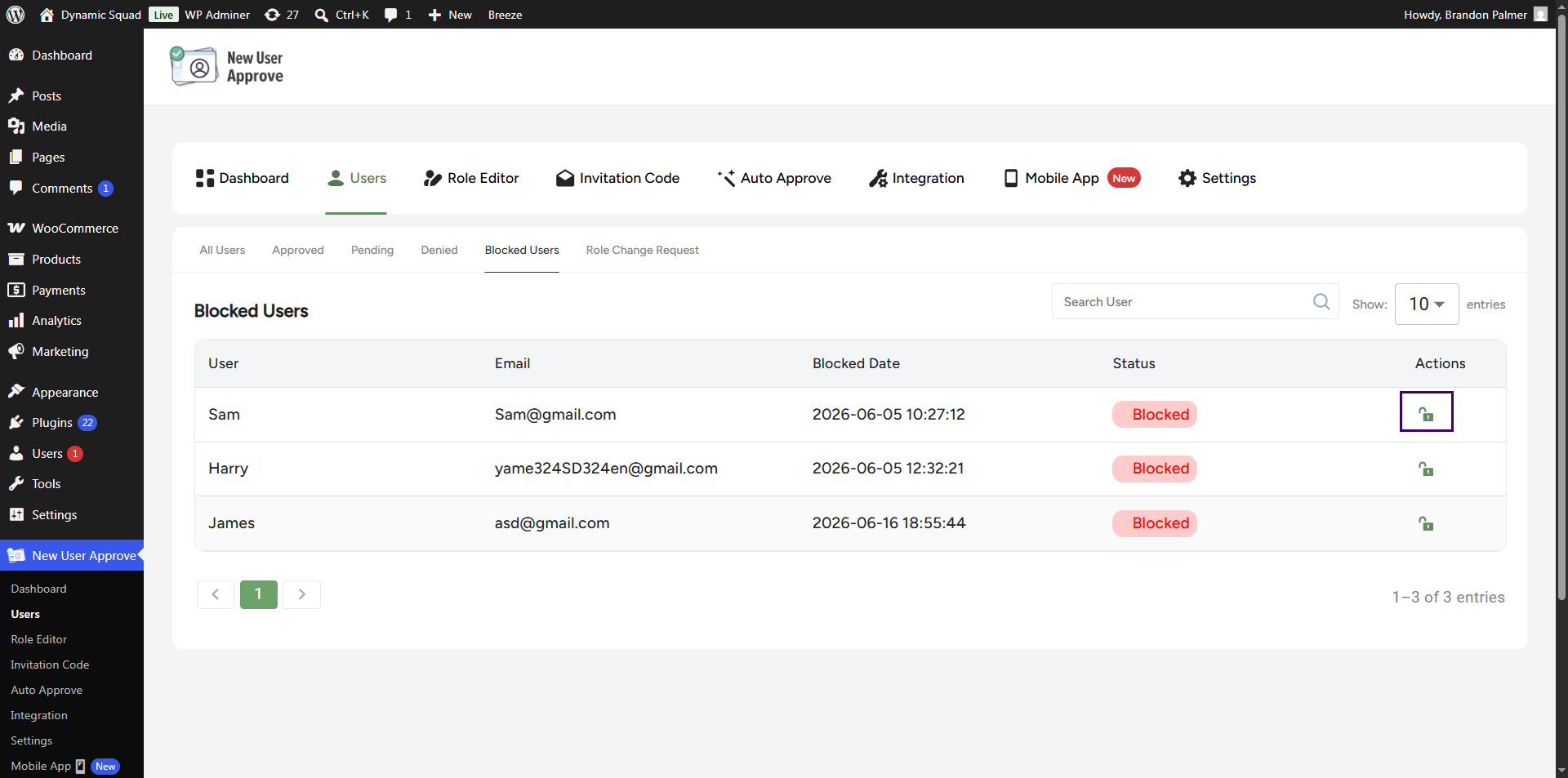
- Once you click the Unblock icon a popup appears — click the Unblock button to restore the user.
Front-end impact
- If a blocked user tries to register again with the same email, registration is refused and they see the Blocked Notification message: “ERROR: Your account is blocked.”
- But if the user is removed from the blocked list user can register again.
- That message text is configurable under Settings → Registration Notification → Blocked Notification (see section 2).
Note Deleting removes the user account; blocking additionally prevents that email from registering again. Choosing “block” when deleting does both at once — the account is removed, and the email is barred until you unblock it from the Blocked Users list.