Role-Based
- In Role–Based Auto Approve, the administrator can configure the system to approve users with specific roles automatically. On the user’s side, they can choose their preferred role during the registration process.
Back-End
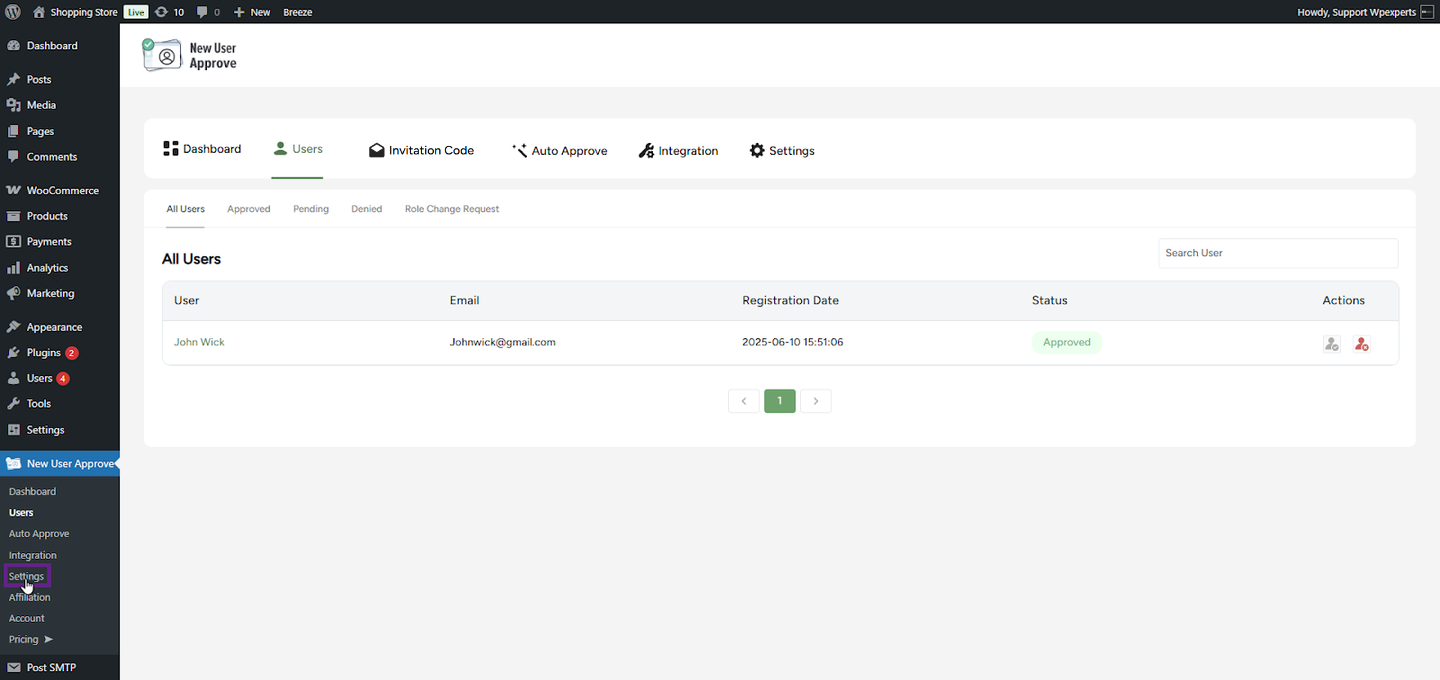
- Go to the Admin Dashboard > New User Approve > Settings.
- In the General sub-tab, activate the Enable Auto–Approve toggle button.
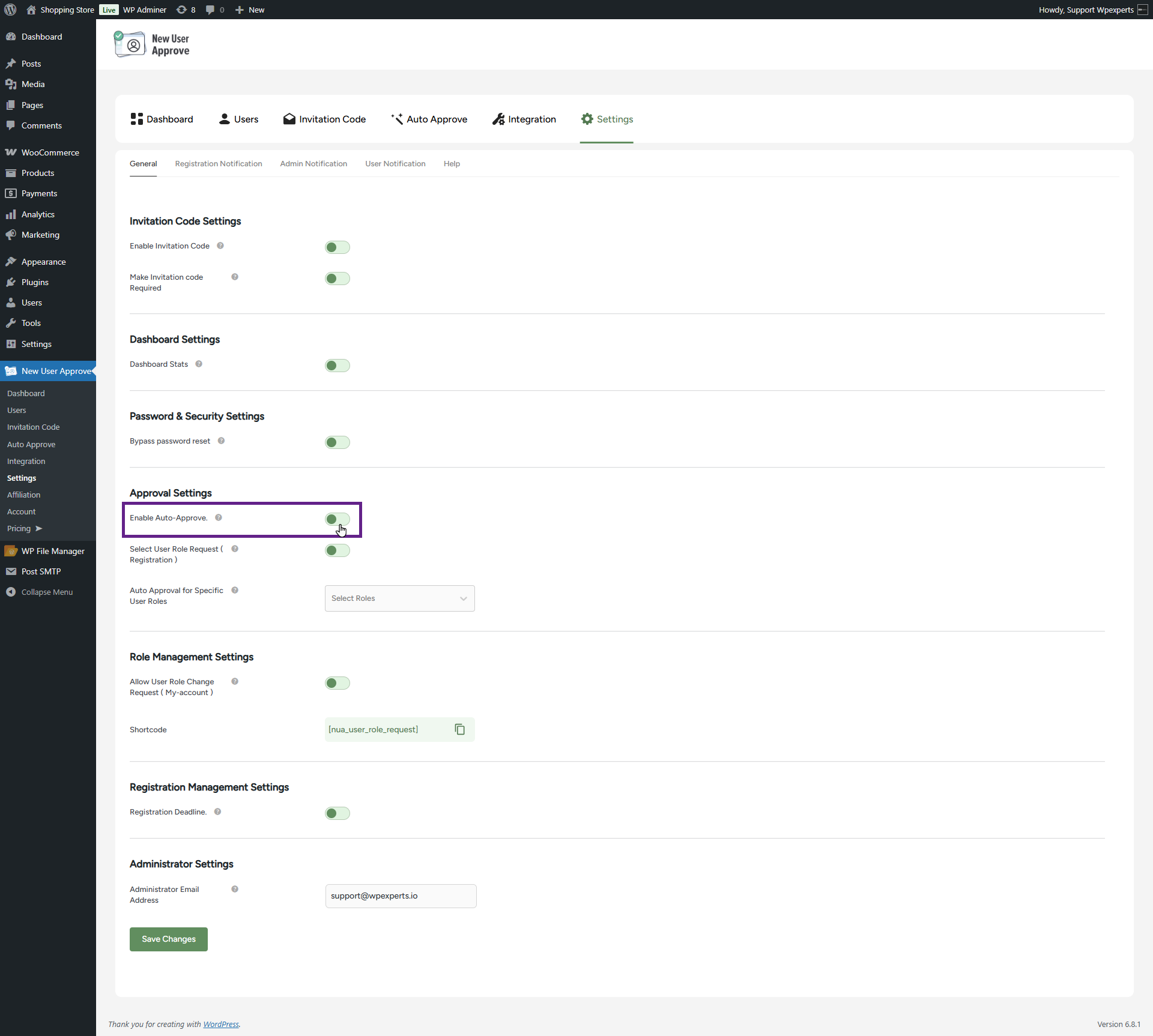
- Next, enable the Select User Role Request (Registration) toggle if you want to allow users to choose their desired role during sign-up.

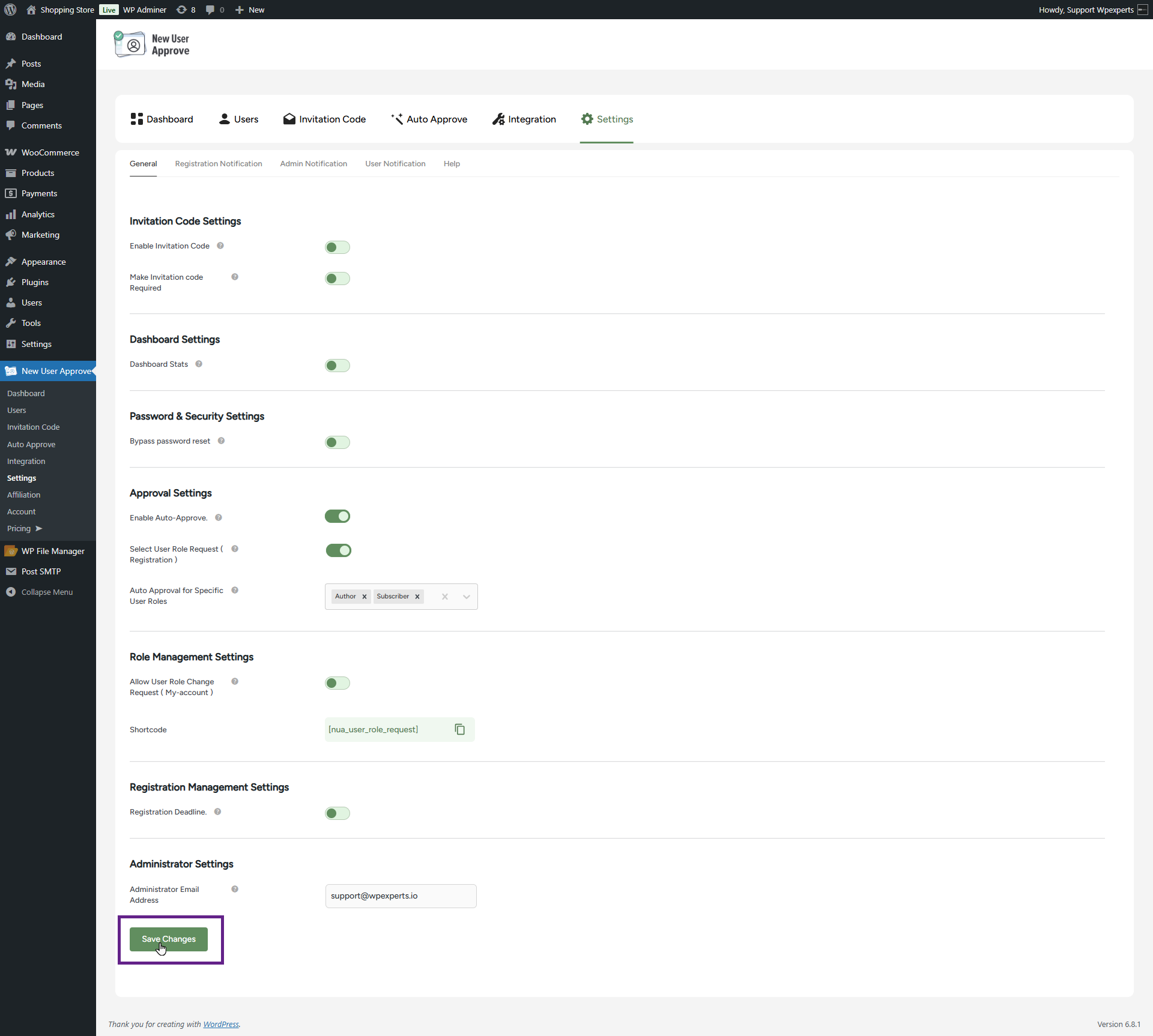
- Now, select the desired role(s) from the Auto Approval for Specific User Roles multi-select menu.

- Once done, click the Save Changes button.
System Impact (Front-End & Back-End)
- Go to the website.
- Navigate to the registration page.
- Select the specific role defined in the backend. In this case, we are selecting the Subscriber role.

- Now, navigate to the Admin Dashboard > New User Approve > Users.

- As you can see, the user has been auto-approved.

- If the user selects a role that hasn’t been configured in the backend, they will not be approved automatically. In this case, we are selecting the Contributor role, which has not been set up in the backend.

- Now, navigate to the Admin Dashboard > New User Approve > Users.
- As you can see, the user has been marked as pending and was not approved automatically.
