
Admin Notification
- The Admin Notifications feature helps track user registration activities by sending email alerts for various events such as pending requests, successful registrations, and password resets. This ensures that administrators stay informed and can take timely action to approve or deny registration requests.
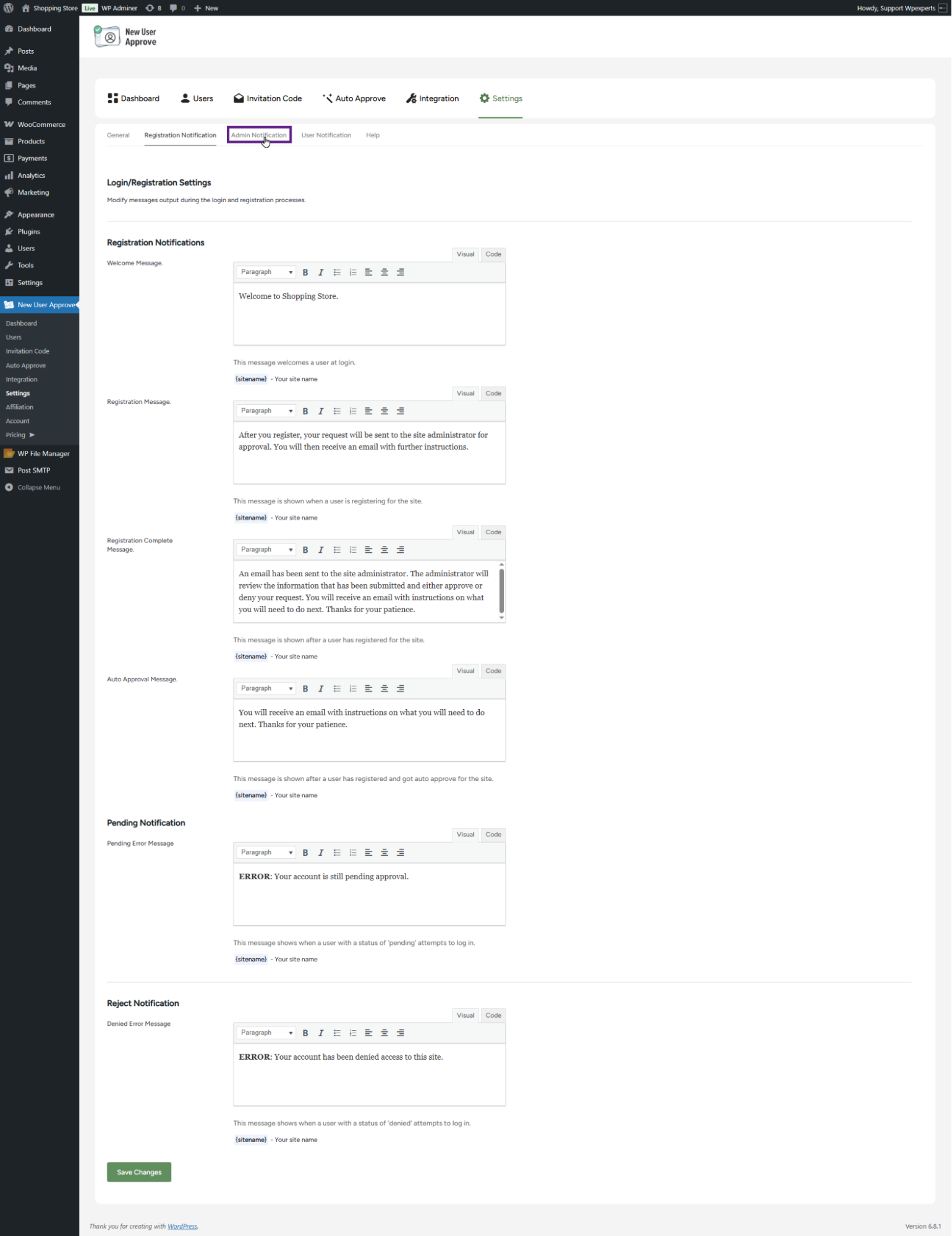
- Navigate to the Admin Notification sub-tab.
Notification Option
- When the Send notification emails to all admins option is activated, all the admins of the website will receive email notifications whenever a user registers and is in the Pending Users section.
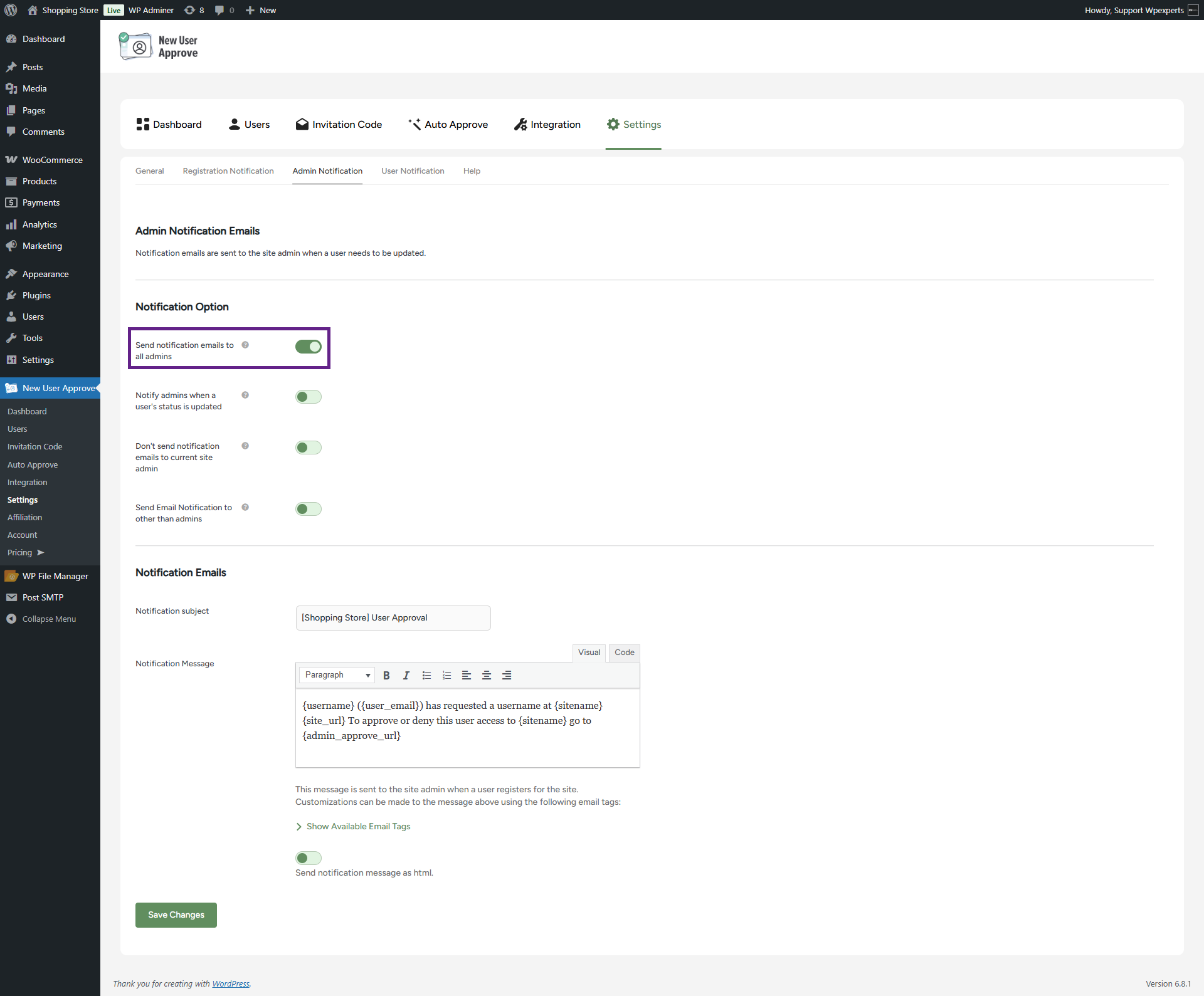
- Click the Save Changes button to apply the settings.
Front-End Impact
- Go to the registration page.
- Enter the required credentials and then click on the Register button.
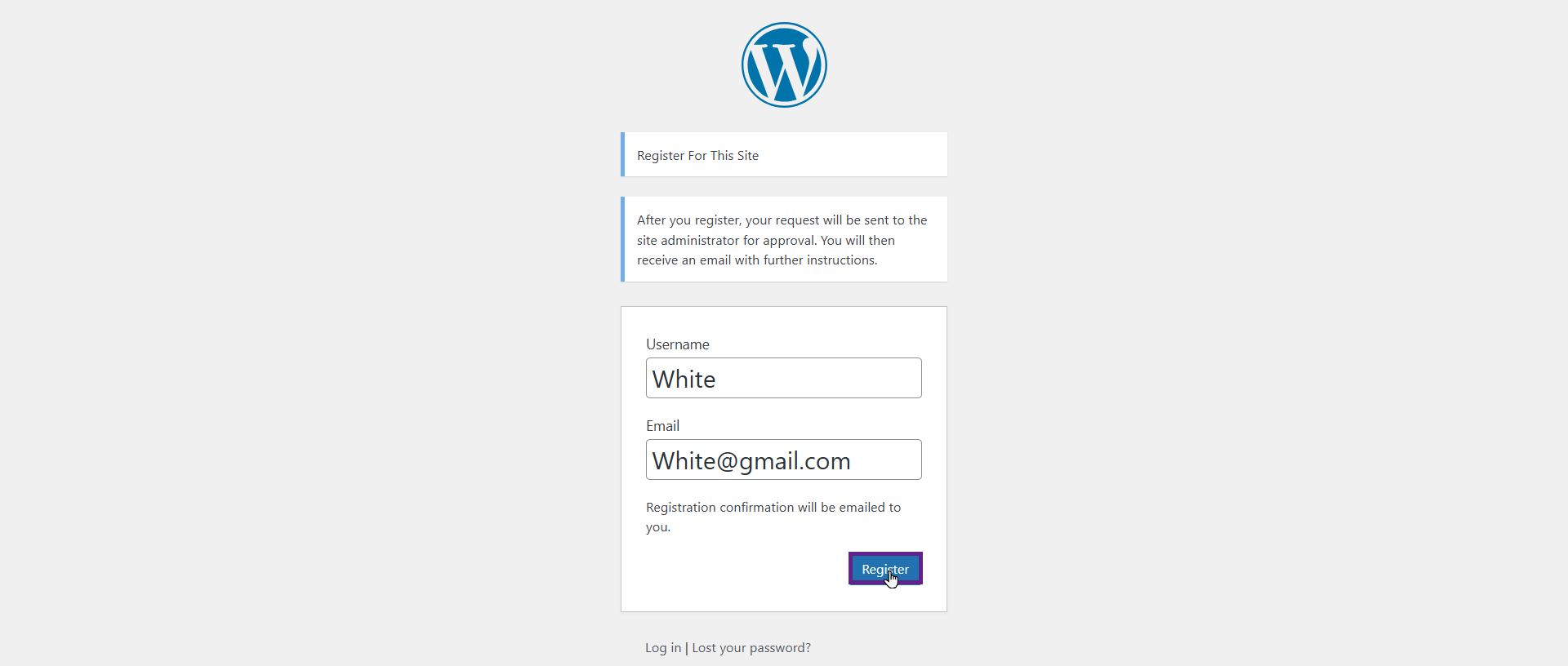
- The user is now moved to the Pending User section, and all website administrators will be notified via email.

- The admin will now check the email.

- When the Notify Admins when a user’s status is updated option is enabled, an email notification will be sent to all site admins whenever a user’s status changes.

- Click the Save Changes button to apply the settings.
Front-End Impact
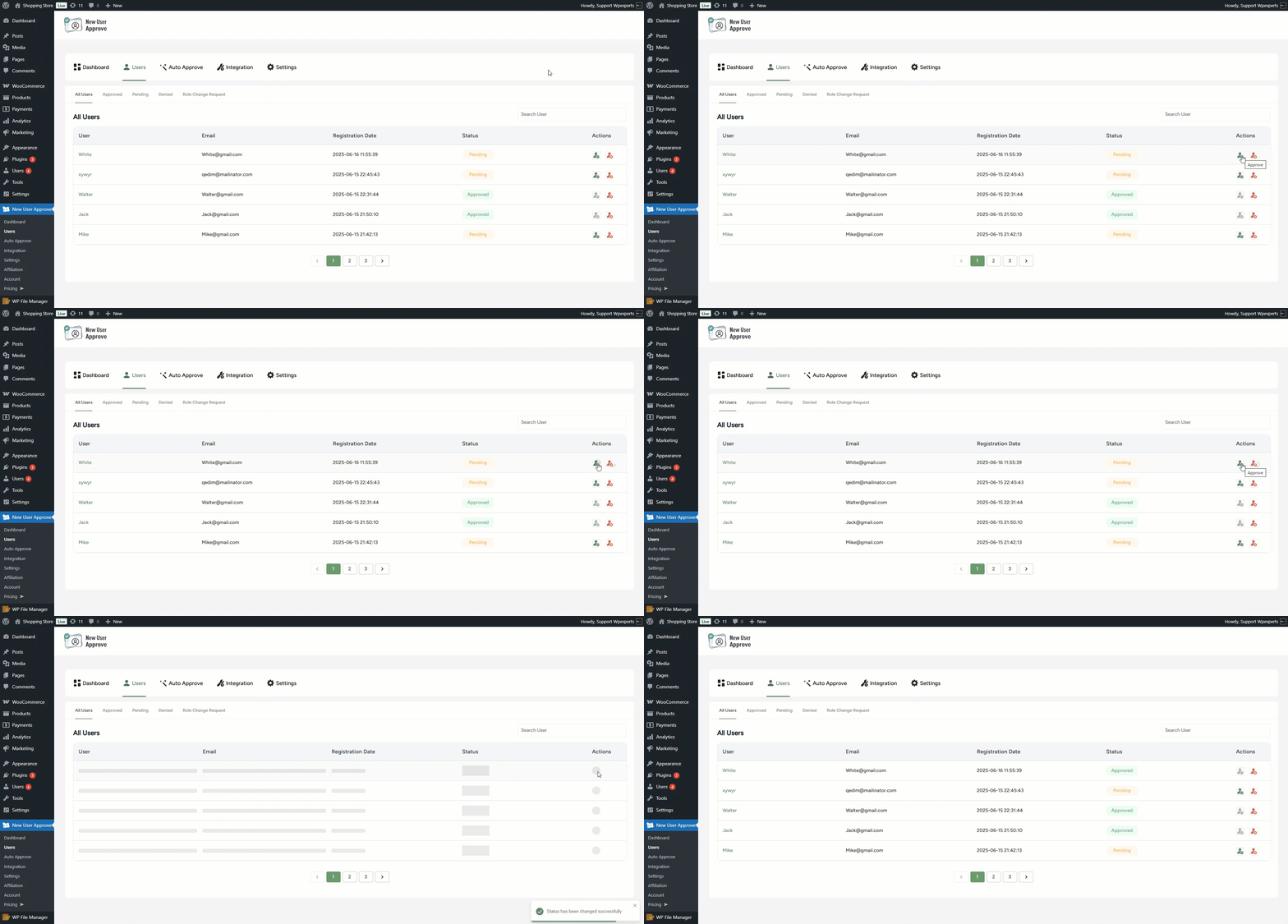
- As we know, in the previous option, a user named White is on the pending list, so we would go and approve him.
- The admin will now check the email.

- When the Don’t send notification emails to the current site admin option is enabled, email notifications related to user approvals and status updates will be excluded for the current site admin.

- Click the Save Changes button to apply the settings.
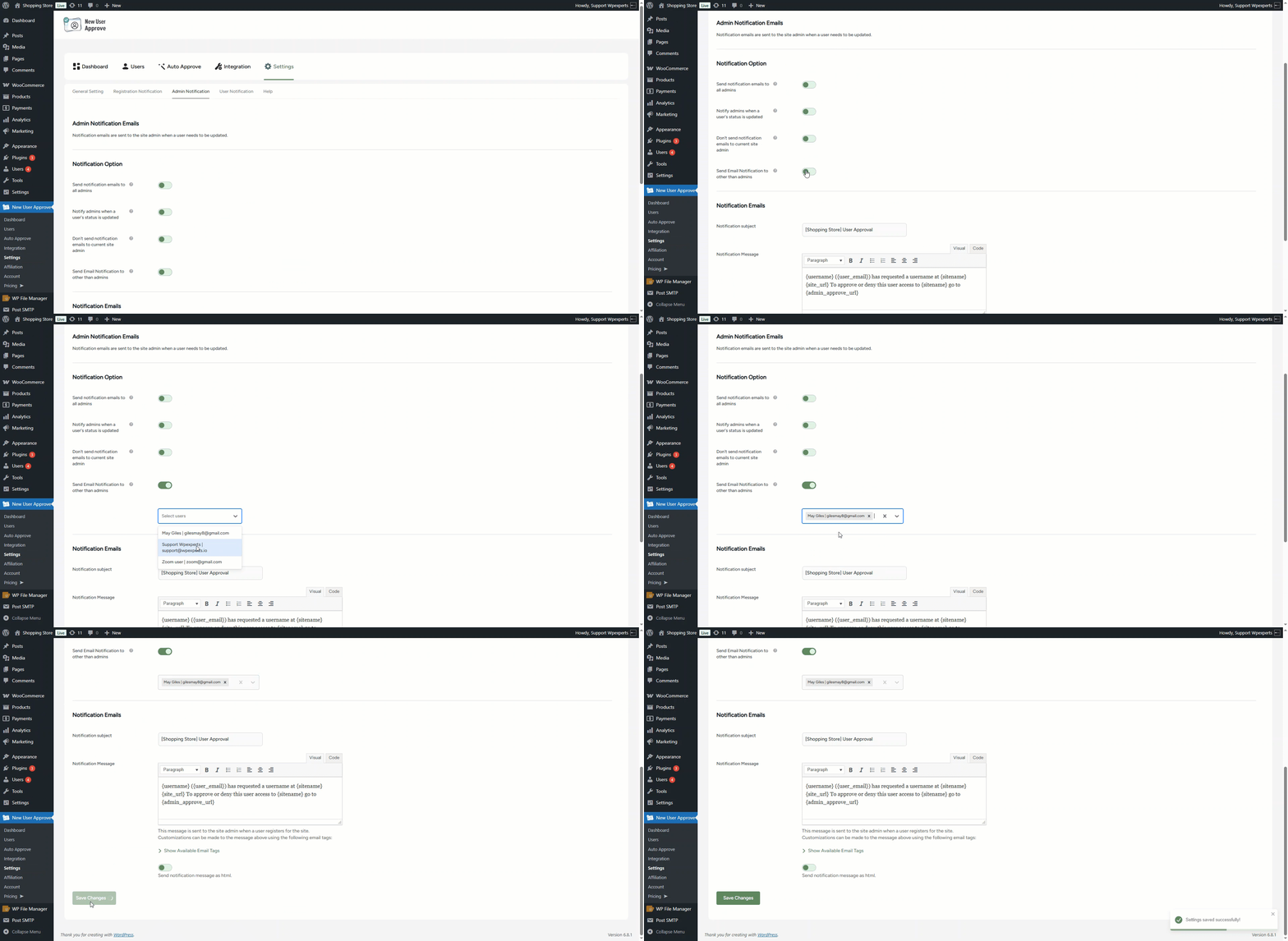
- When the Send notification emails to users other than admins option is enabled, email notifications for registration events will be sent only to the users specified in the provided field.
Note: When the Send Email Notification to users other than admins option is enabled, the following three options will not function: Send notification emails to all admins, Notify admins when a user’s status is updated, and Don’t send notification emails to the current site admin.
This option depends on the Enable Invitation Code setting in the General settings. To use the Approve on Invitation Code After Deadline feature, ensure that the invitation code option is enabled.
Front-End Impact
- Go to the registration page.
- Enter the required credentials and then click on the Register button

- The specific users selected by the admin will receive an email notifying them of a new user registration, with the status marked as Pending and requiring approval or denial.

Notification Emails
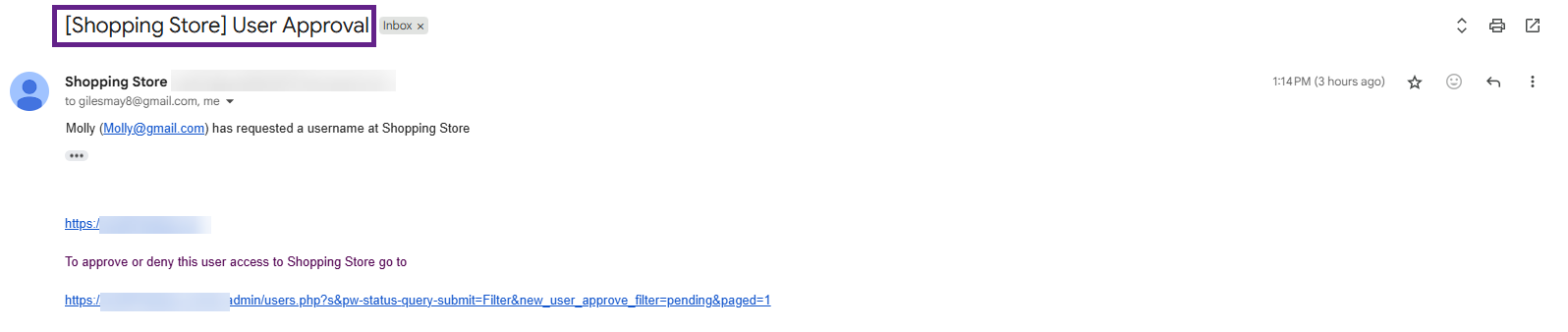
- The admin can customize the notification subject as needed. This subject will be included in all admin notification emails.

- Click the Save Changes button to apply the settings.
Front-End Impact
- As you can see, the subject line is clearly displayed in the notification email.
- The admin can customize the Notification Message as needed, using the tags listed under Hide Available Email Tags for additional flexibility.
- Toggle the button to enable the notification to be sent in HTML format.

- Click the Save Changes button to apply the settings.
Front-End Impact
- The email received has the same format which we configured in the Notification Message textbox.
