

Domain-Based
- In domain-based auto approval, administrators can allow or restrict user registrations based on email domains. For example, the system can be configured to automatically approve users from specific domains while denying registrations from others, streamlining the process without requiring manual review.
Back-End
- Go to the Admin Dashboard > New User Approve > Settings.

- In the General sub-tab, activate the Enable Auto–Approve toggle button.
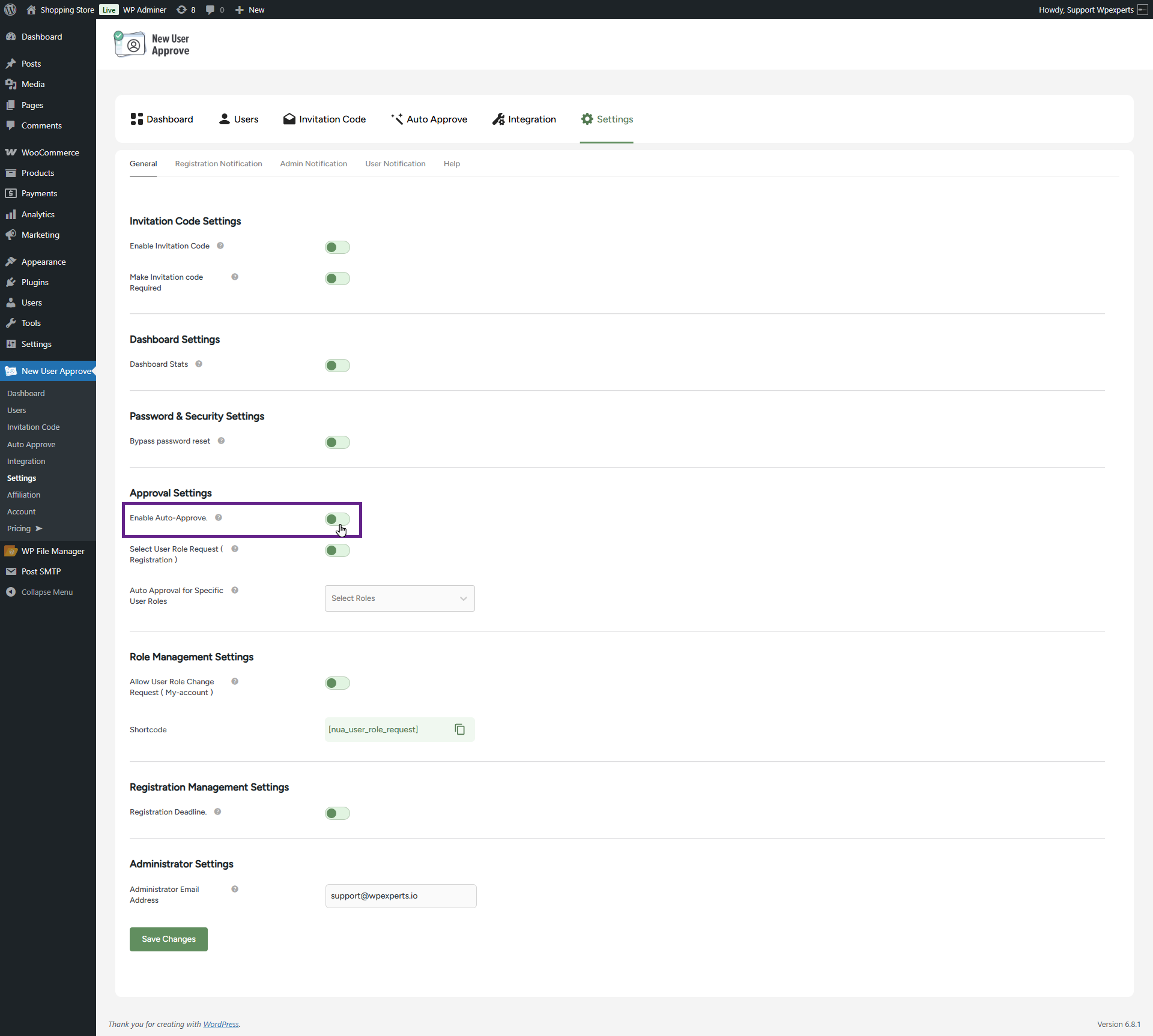
- Once done, click the Save Changes button.
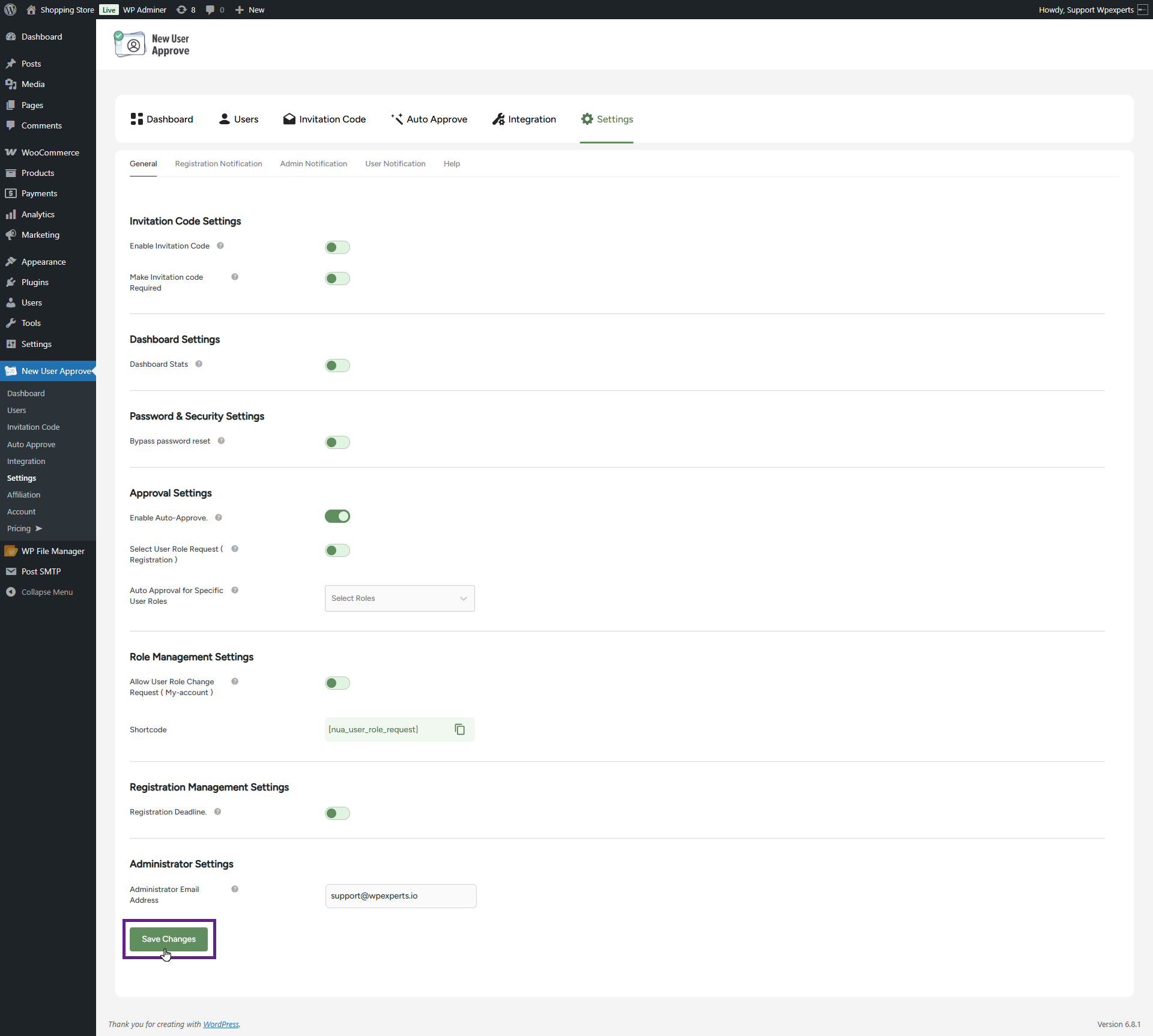
- Now, navigate to the Auto Approve header.
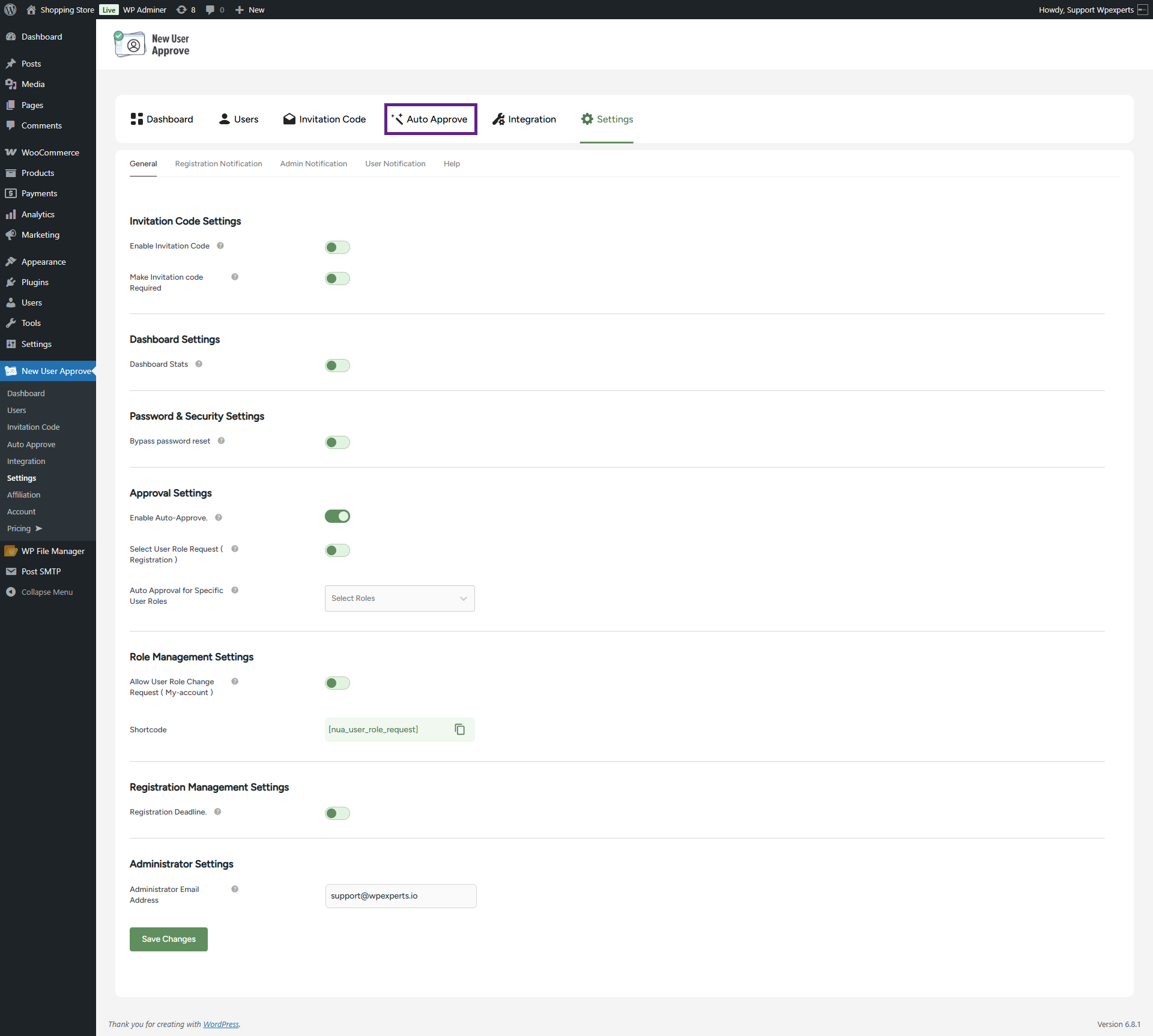
- Activate the Enable Whitelist toggle button. This option allows users with specified domains to be automatically approved.

- Now, specify the domain(s) to be added to the whitelist.

- Once done, click the Save Changes button.
- If the admin wants to prevent users from registering with email addresses belonging to specific domains, those domains can be added to the blacklist. To do this, go to the Blacklist sub-tab.

- Activate the Enable Blacklist toggle button.

- Now, specify the domain(s) to be added in the blacklist.

- Finally, update the custom message if desired. A default message is already provided.

- Once done, click the Save Changes button.

System Impact (Front-End & Back-End)
- Go to the website.
- Navigate to the registration page.
- Sign up with an email from a whitelisted domain.

- As you can see, the user with the specified email domain has been automatically approved.

- Now, sign up with an email from a blacklisted domain.

- As you can see, the user’s registration request has been rejected, and the custom message is displayed as well.

Please note:
- If a user’s email domain is listed in the blacklist, access is automatically denied — even if the user selects a role that has been configured in the backend (e.g., Subscriber or Author). The blacklist always takes priority and overrides all other conditions.
- If the email domain is not in the blacklist, access is automatically approved if either of the following is true:
- The user selects a role that is configured in the backend.
- The user’s email domain is included in the whitelist.
- If neither condition is met and the blacklist is empty, the user will be marked as pending.