
Dashboard
The first screen shown to the user after scanning the QR code is the dashboard.
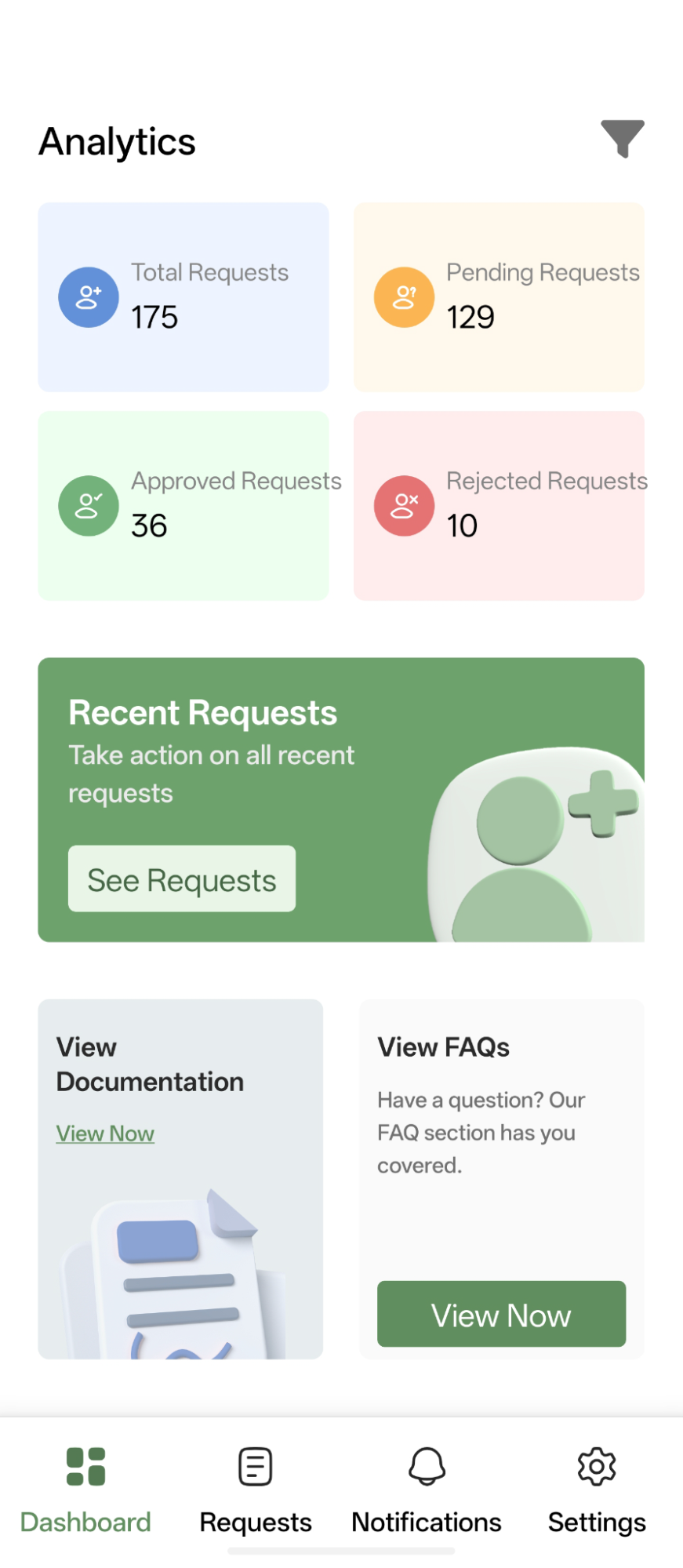
- The app features bottom navigation tabs that let you quickly switch between Dashboard, Requests, Notifications, and Settings.
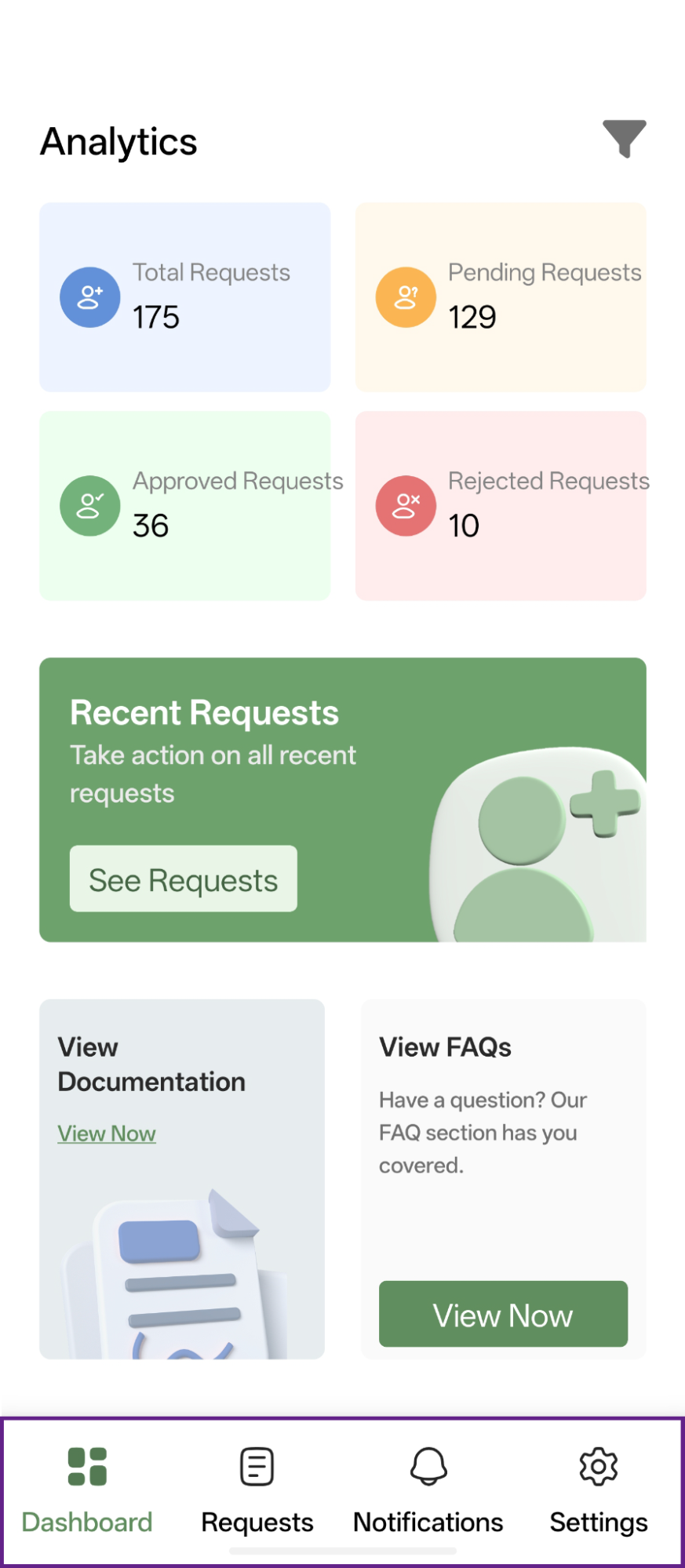
- The admin can view analytics of all user requests.
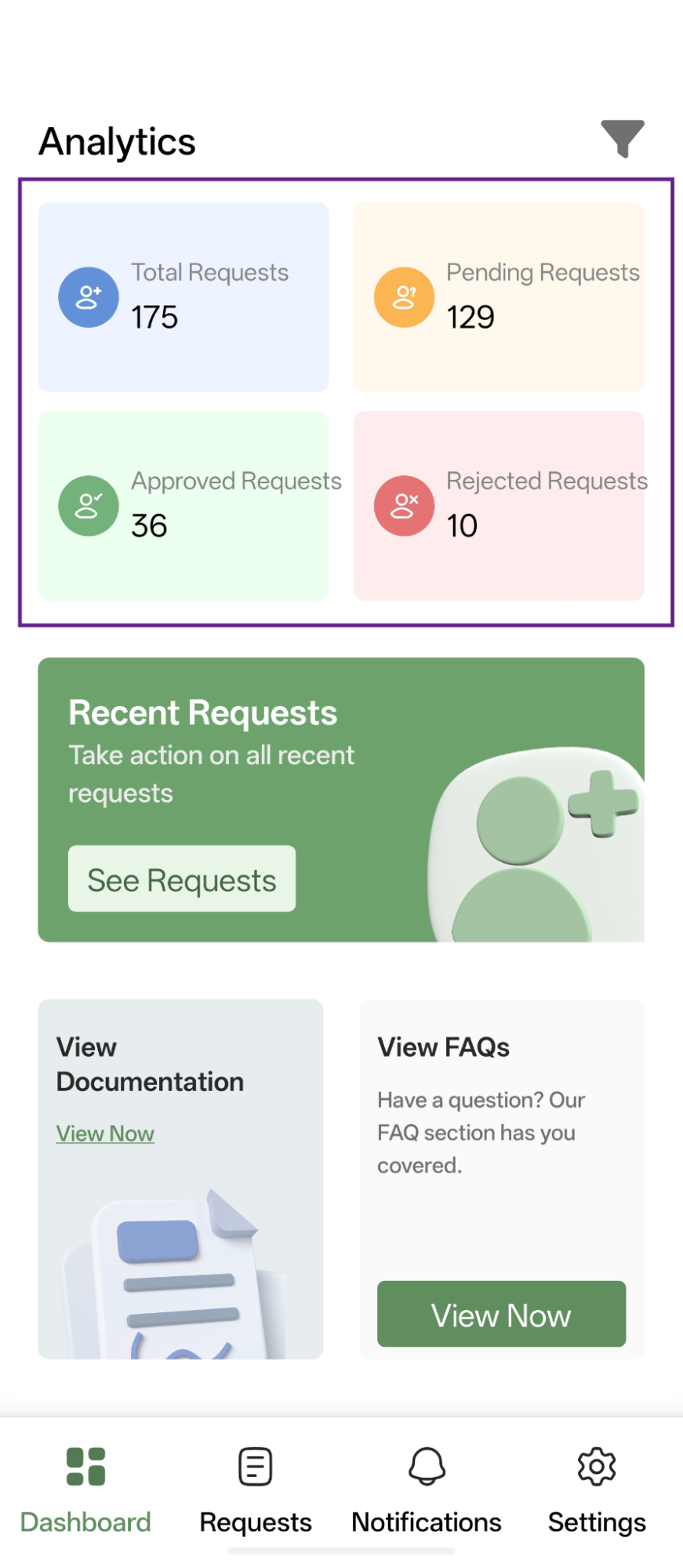
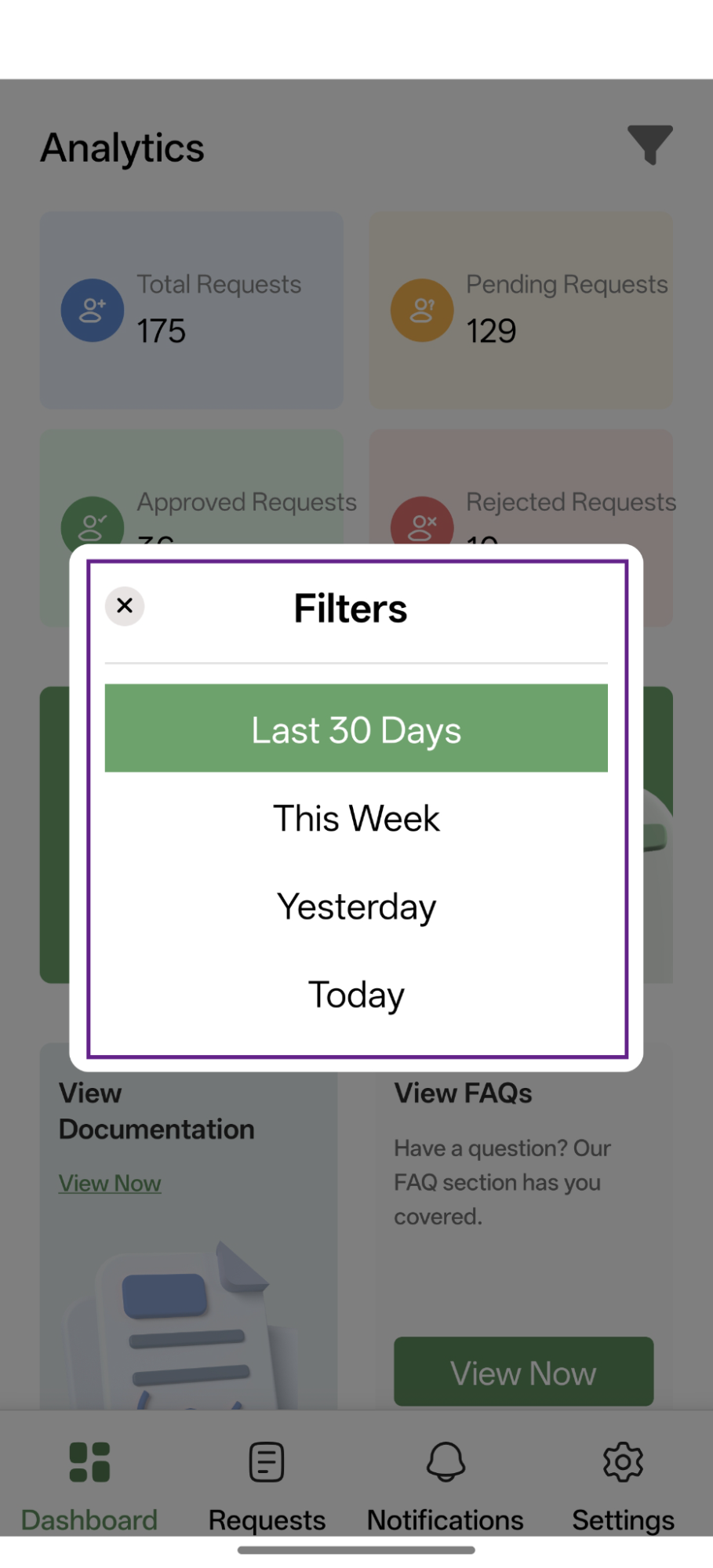
- To filter the data according to your needs, click the filter icon.

- After clicking, a filter pop-up will appear, allowing the admin to filter the data using the available options.
- In the Recent Requests section on the Dashboard tab, clicking the See Requests button will redirect the admin to the Requests tab.
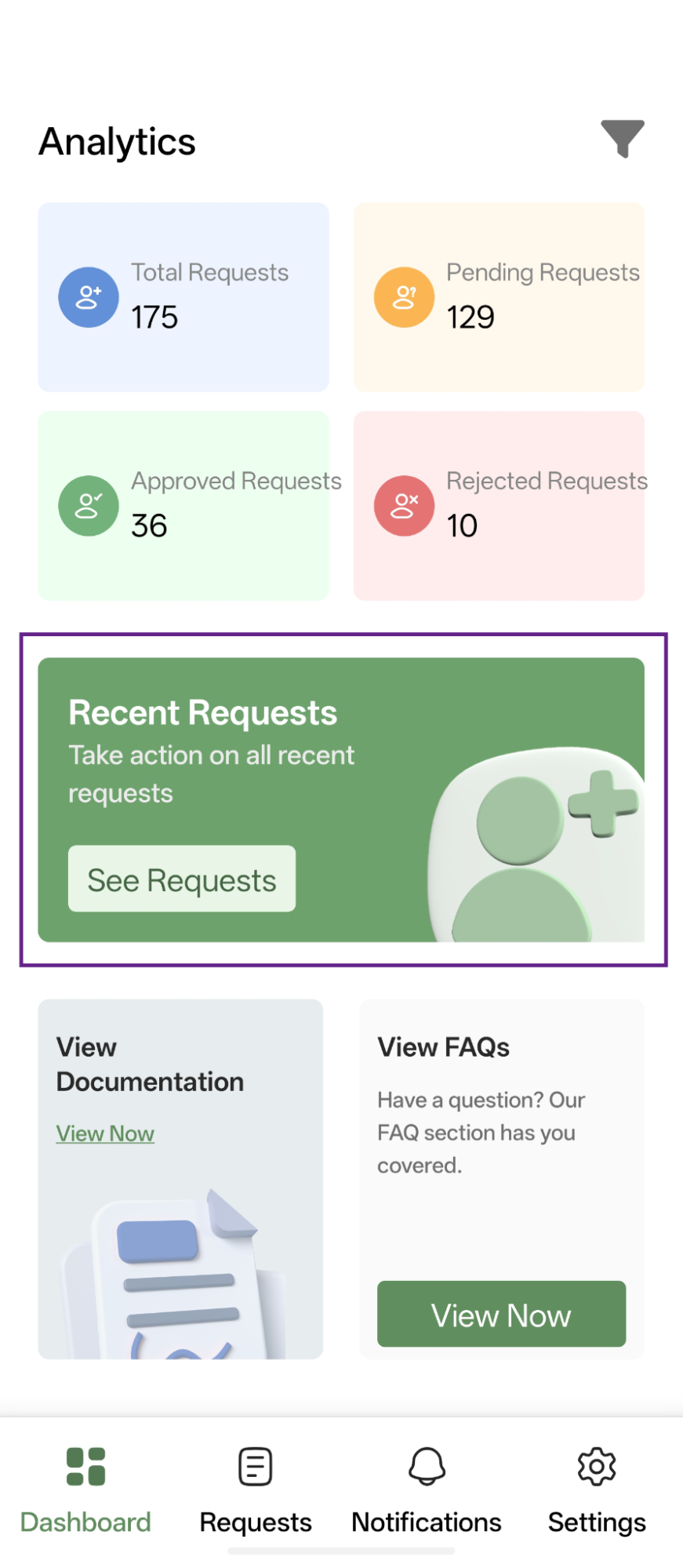
- The admin can go straight to the New User Approve app documentation by clicking the View Now button located in the View Documentation section of the dashboard.

- The admin can access the FAQ section by clicking the View Now button available in the View FAQs section of the dashboard.
