Overview
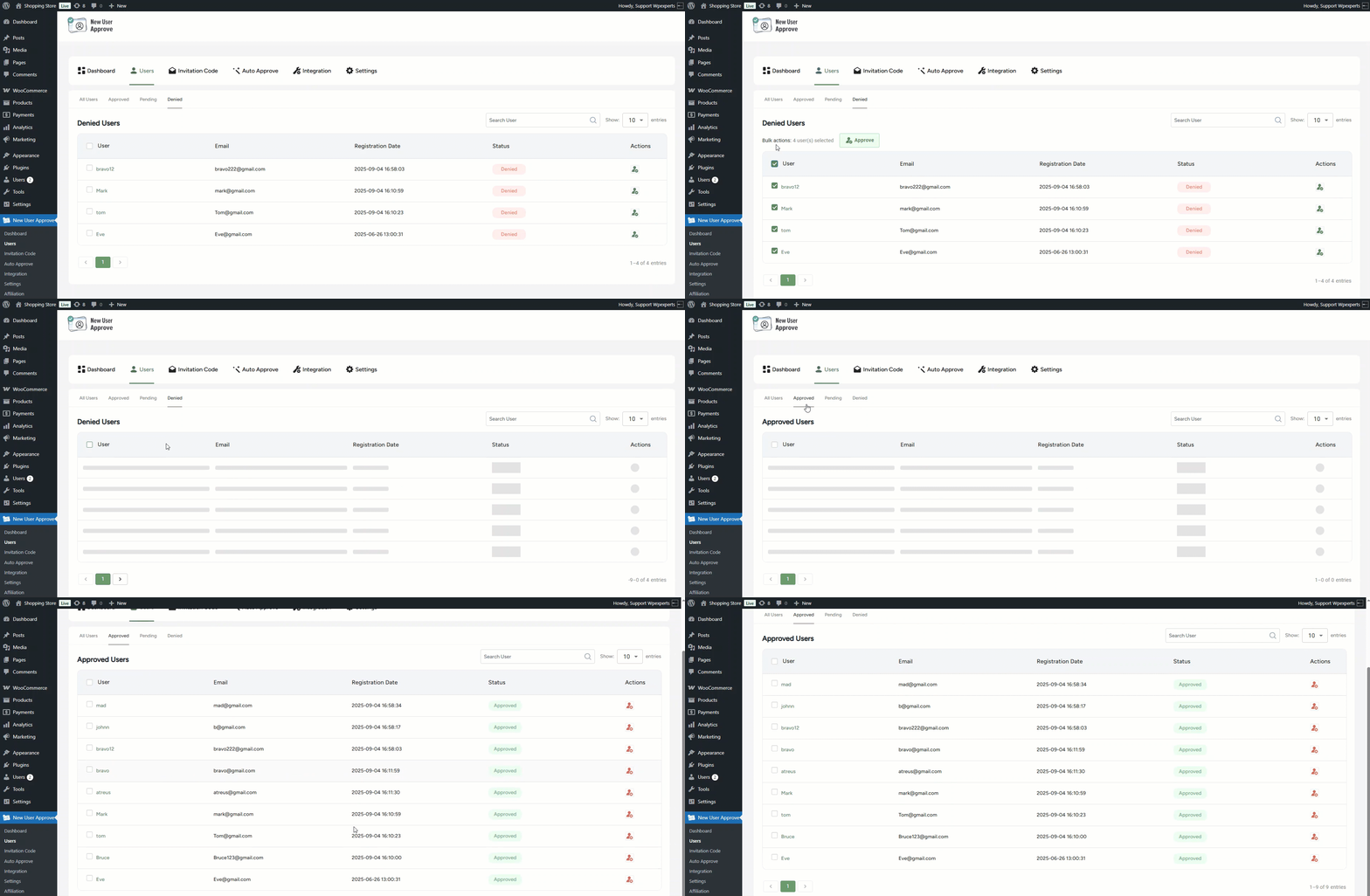
Under the User header, there are five sub-tabs: All Users, Approved, Pending, Denied, and Role Change Request. Each tab displays users based on their status, such as approved, denied, pending, or all users. Additionally, in the Role Change Request tab, the admin can review and act on role change requests submitted by users.
- Go to the Admin Dashboard > New User Approve > Users.

All Users
- When the admin opens the Users section, the All Users sub-tab page is displayed.

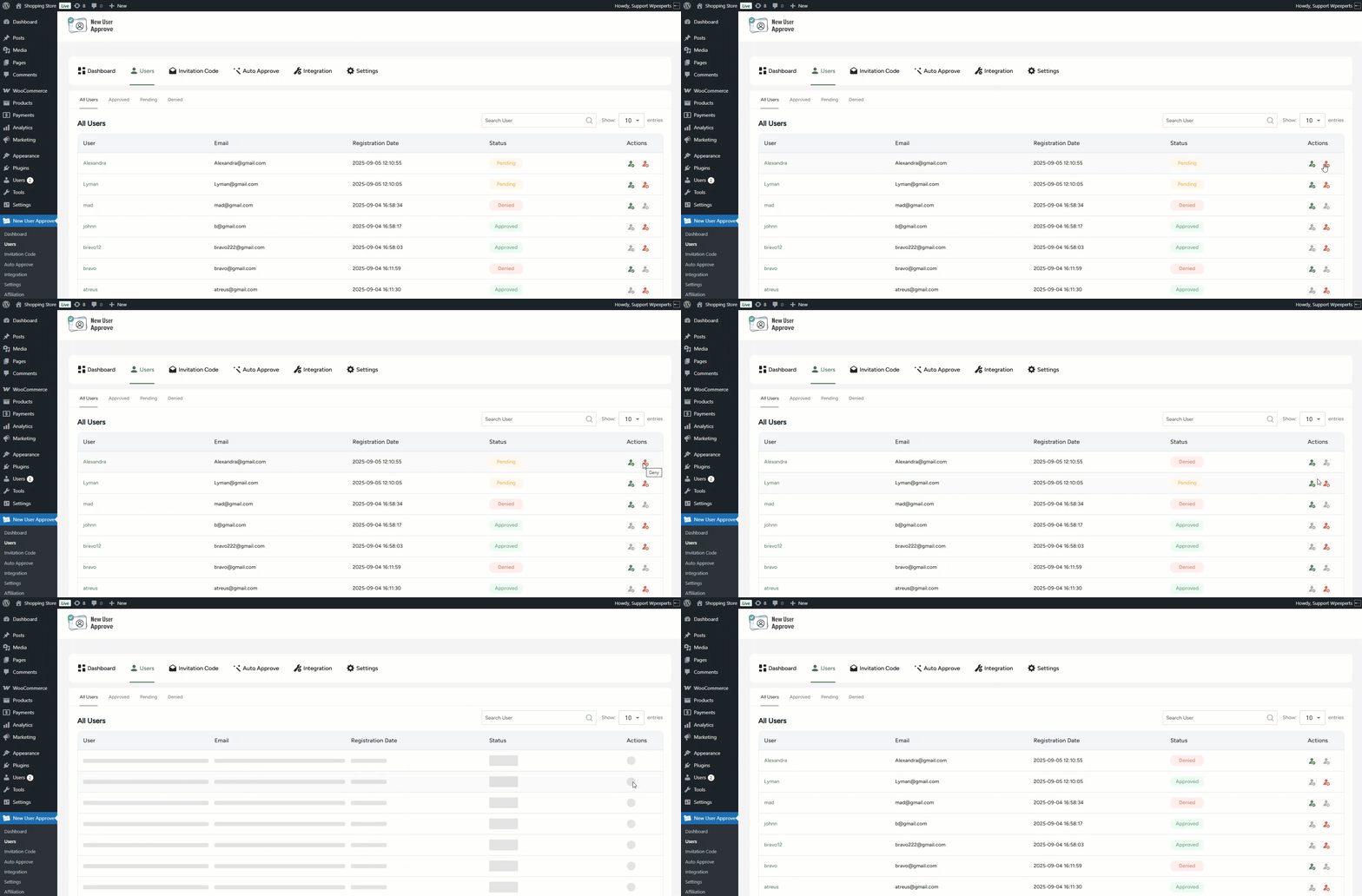
- In the All Users sub-tab, all user requests are displayed.

- The admin can approve or deny each request at their discretion.
Note: As you can see, when the first request was denied, its status changed from Pending to Denied. The status always updates based on the admin’s action.
- A user can be directly searched for by using the provided search bar.

- The filter allows the admin to control how many user entries are displayed per page (e.g., 10, 20, 50, 100).

Approved
- In the Approved sub-tab, only the list of approved users will be displayed.
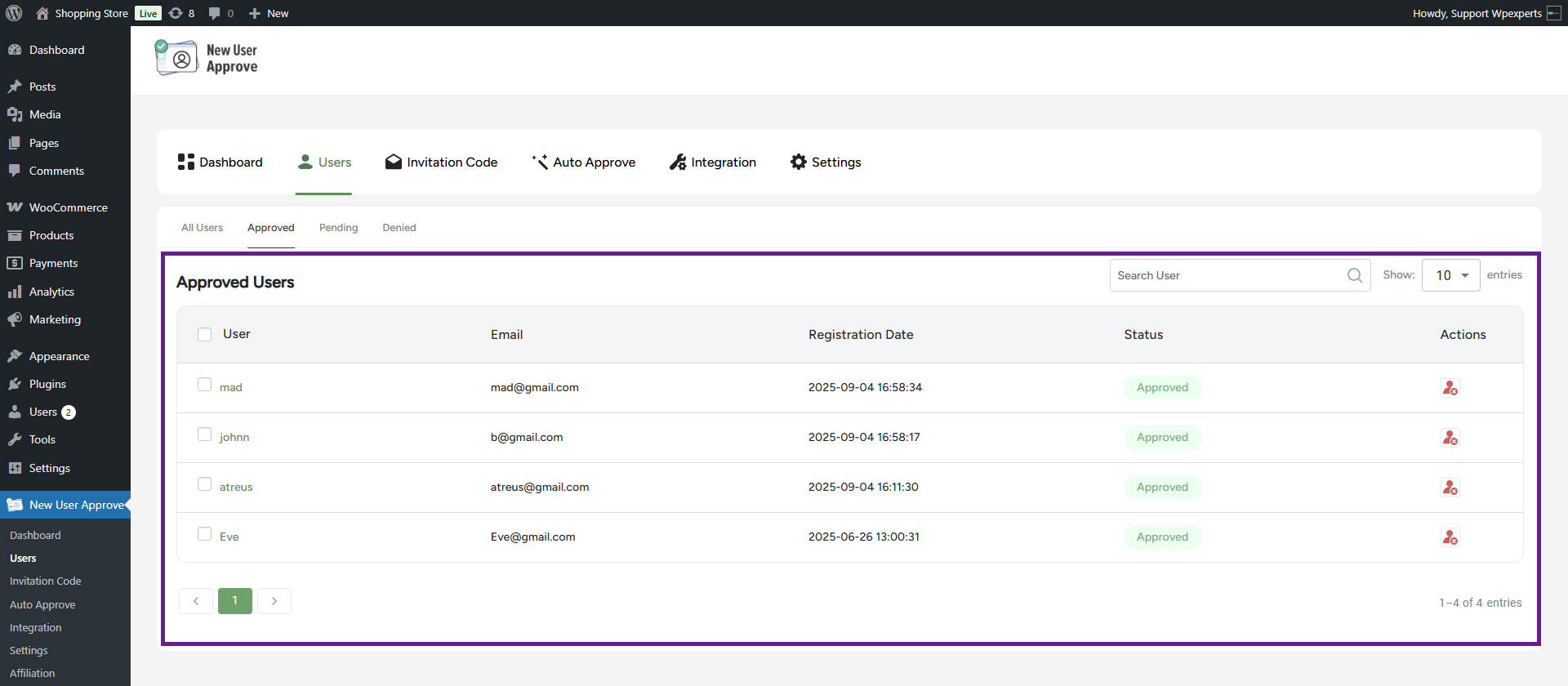
- Approved users can also be denied access by clicking the deny icon, even if their request was initially approved.

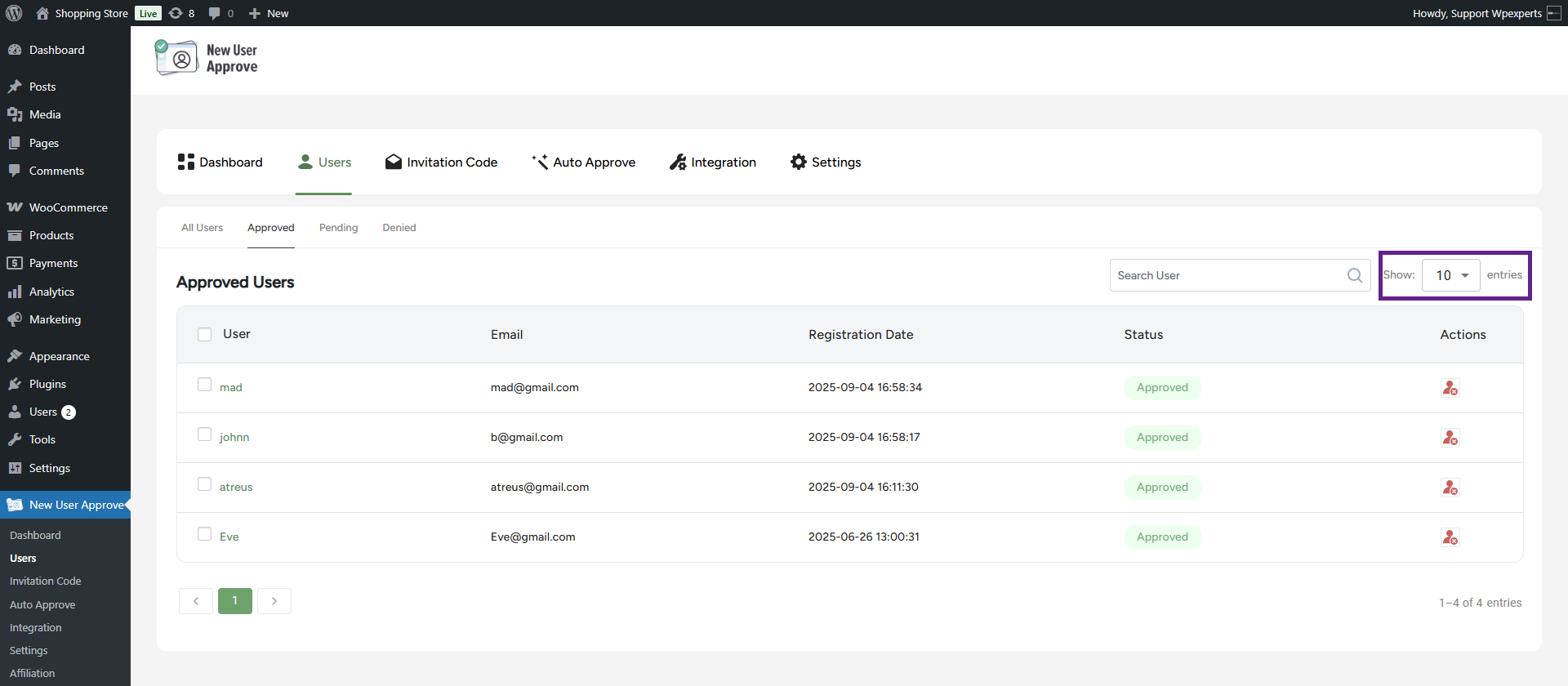
- The filter allows the admin to control how many user entries are displayed per page (e.g., 10, 20, 50, 100).
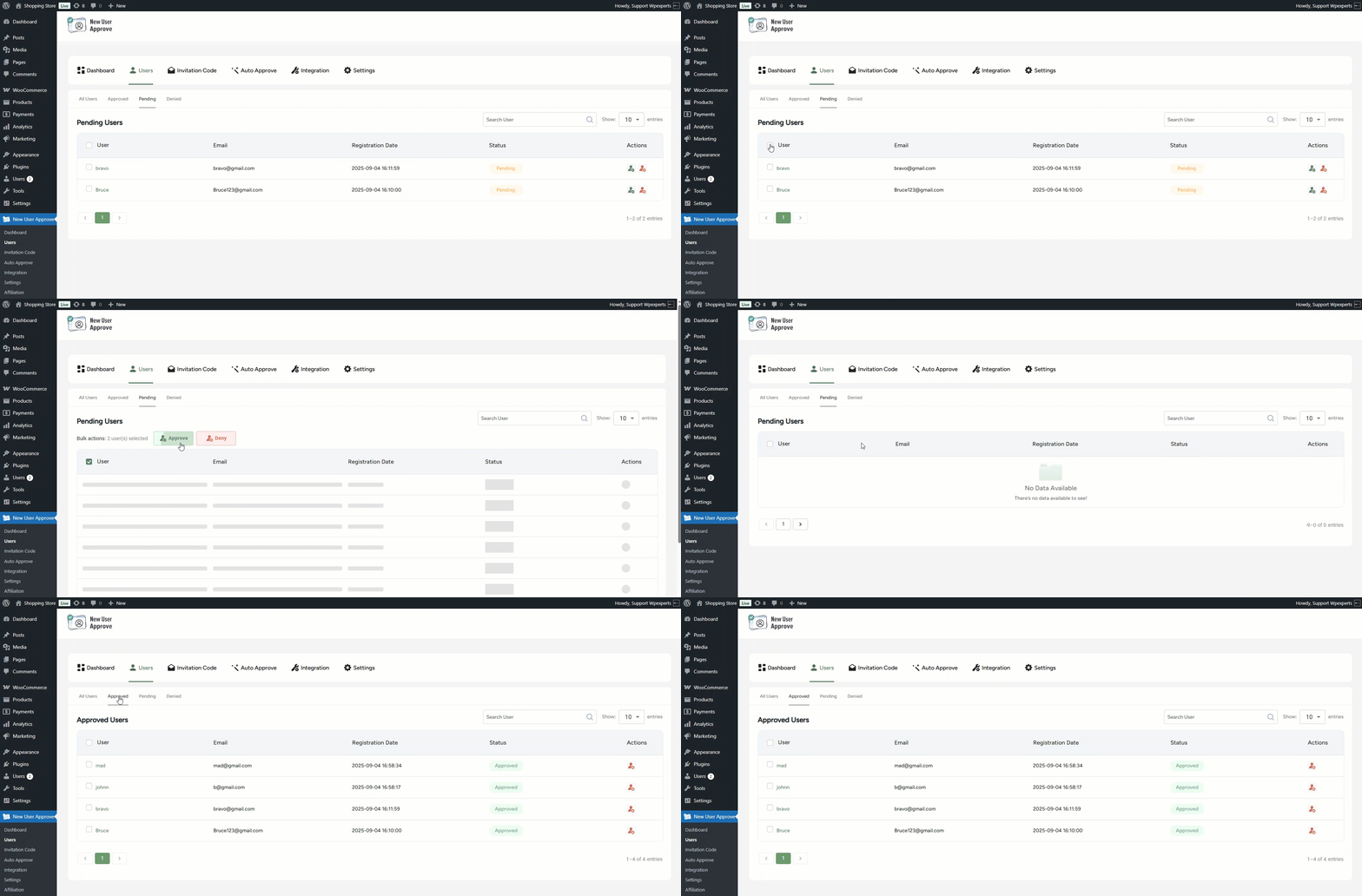
- The admin can also deny multiple users at once using the bulk action option.

Pending
- In the Pending sub-tab, only the list of pending users will be displayed.
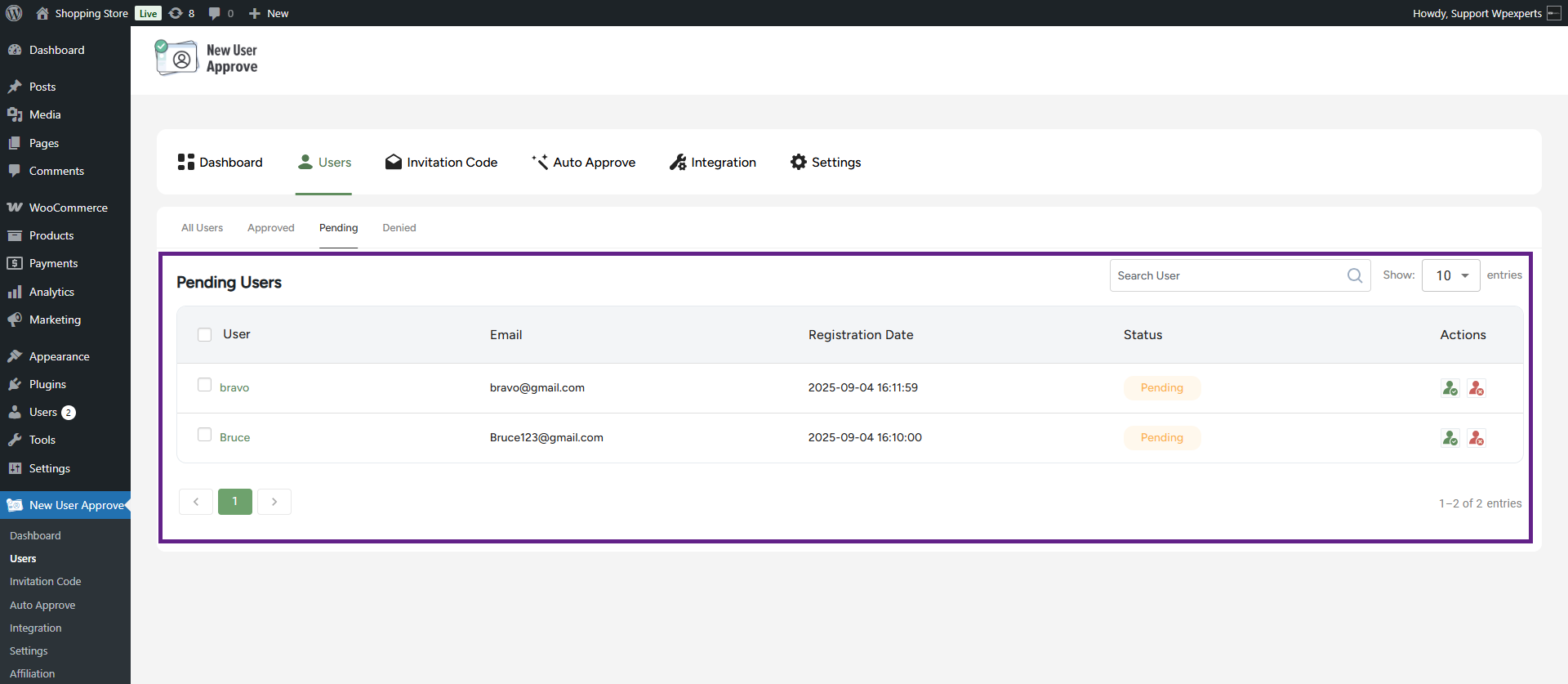
- The admin can directly approve or reject requests from the Actions column.

- The filter allows the admin to control how many user entries are displayed per page (e.g., 10, 20, 50, 100).

- The admin can also deny or approve multiple users at once using the bulk action option.
Denied
- In the Denied sub-tab, only the list of denied users will be displayed.

- Denied users can also be granted access by clicking the approve icon, even if their request was initially rejected.
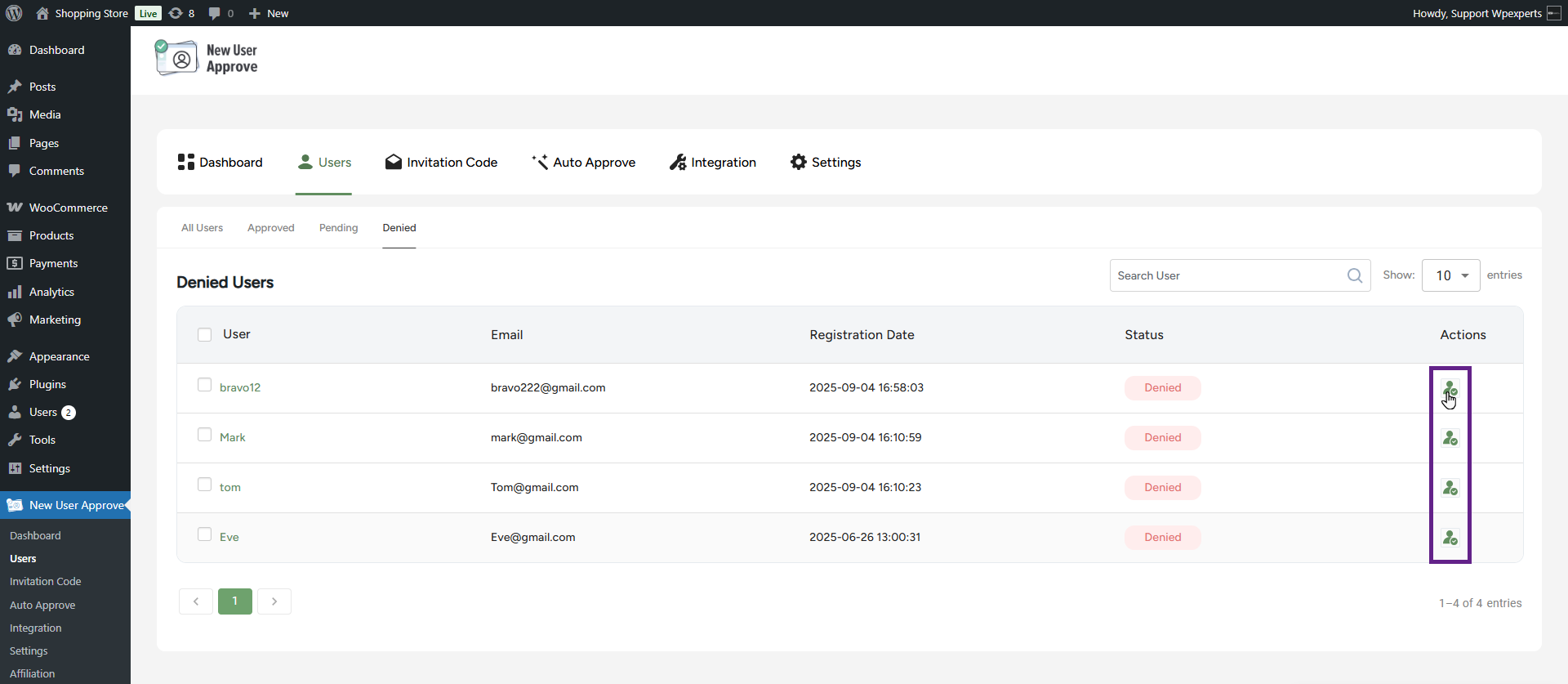
- The filter allows the admin to control how many user entries are displayed per page (e.g., 10, 20, 50, 100).

- The admin can also approve multiple users at once using the bulk action option.