

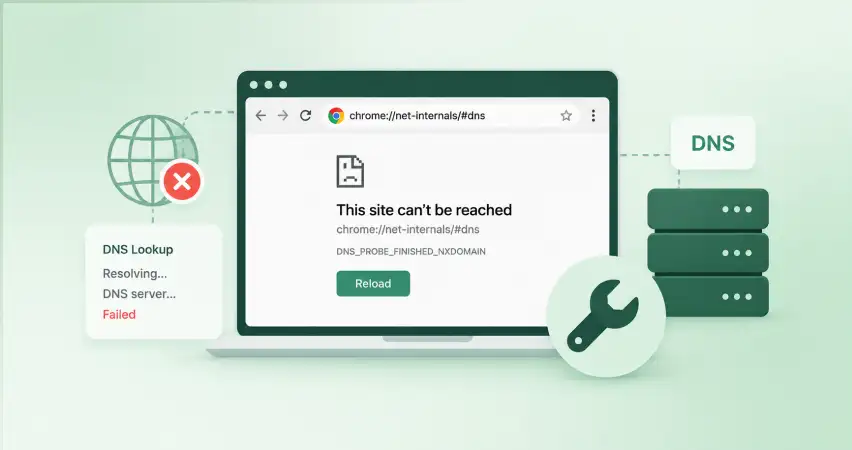
You type a URL, hit Enter, and Chrome throws back “This site can’t be reached.” Refreshing does nothing. Other sites load fine, just not this one, or sometimes not any of them. That’s the Chrome net internals DNS error or chrome://net-internals/#dns.
It almost always comes down to one thing: Chrome (or your operating system) is holding onto a bad or outdated DNS record and refusing to look up a fresh one. The fix takes two minutes once you know where to look.
This Google Chrome error-fixing guide walks through how to confirm that’s actually your problem and what’s causing it: chrome://net-internals/#dns.
How to Detect Google Chrome Net Internals DNS Error
Three signs point to it specifically, not just “the internet is down.”
The error text says “This site can’t be reached,” not “no internet connection.” Your Wi-Fi icon is fine. Other apps that use the internet still work.
Some sites load, others don’t, on the same connection, same browser tab. If every single site fails, that’s a network problem, not this one.
You’ll usually see one of these codes under the error message:
- DNS_PROBE_FINISHED_NXDOMAIN
- ERR_NAME_NOT_RESOLVED
- ERR_CONNECTION_TIMED_OUT
- ERR_ADDRESS_UNREACHABLE
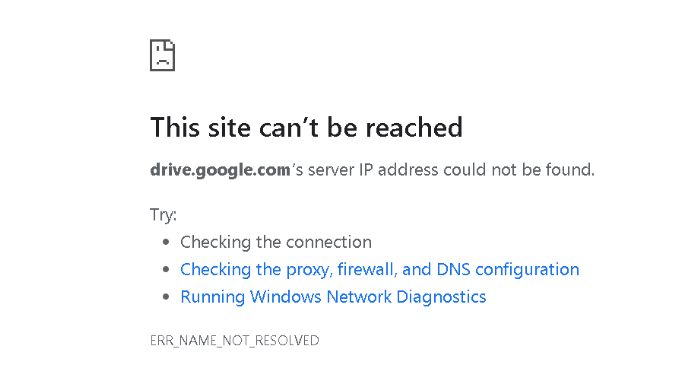
Those two top codes get confused constantly, and the difference actually matters for what you try next.
DNS_PROBE_FINISHED_NXDOMAIN means Chrome asked a DNS server and got back a definite no, that domain does not exist.
Usually a typo, an expired domain, or a DNS record that’s wrong. ERR_NAME_NOT_RESOLVED means the DNS lookup never got a usable answer at all.
The resolver didn’t respond, or it’s misconfigured. That version is more often temporary and fixable on your end.
If you only ever hit ERR_NAME_NOT_RESOLVED and a retry sometimes clears it, the problem is probably your local cache or resolver, not the site.
What Causes Google Chrome Net Internals DNS Error
DNS turns a domain name into an IP address. Chrome caches that translation so it doesn’t have to ask again every time you load the same site. That cache is the entire mechanism, and it’s also where this breaks.
Three failure points, in order of how often you’ll hit them:
- Chrome’s own DNS cache is stale. A site changed servers or its IP address, and Chrome is still holding the old one.
- The operating system’s DNS cache is stale. Same problem, one layer down, outside Chrome’s control.
- Chrome’s Secure DNS setting is misconfigured. This one’s newer and most guides skip it. Chrome can route DNS lookups through an encrypted DNS-over-HTTPS (DoH) provider instead of your normal resolver.
If that DoH endpoint is unreachable, blocked by your network, or set to a provider that’s down, you’ll get ERR_NAME_NOT_RESOLVED even though your regular internet connection works fine.
Check it at chrome://settings/security under “Use secure DNS.” If it’s set to a specific provider and nothing loads, switch it to “With your current service provider” and reload.
A corrupted hosts file, an overzealous antivirus filtering DNS traffic, or your ISP blocking a domain can also produce the same symptoms. Rarer, but worth ruling out if the fixes below don’t work.
How to Fix Google Chrome Net Internals DNS Error (in Chrome)
Start here. This solves it most of the time.
Clear The Host Cache
- Type chrome://net-internals/#dns in the address bar and hit enter.
- Click Clear host cache.
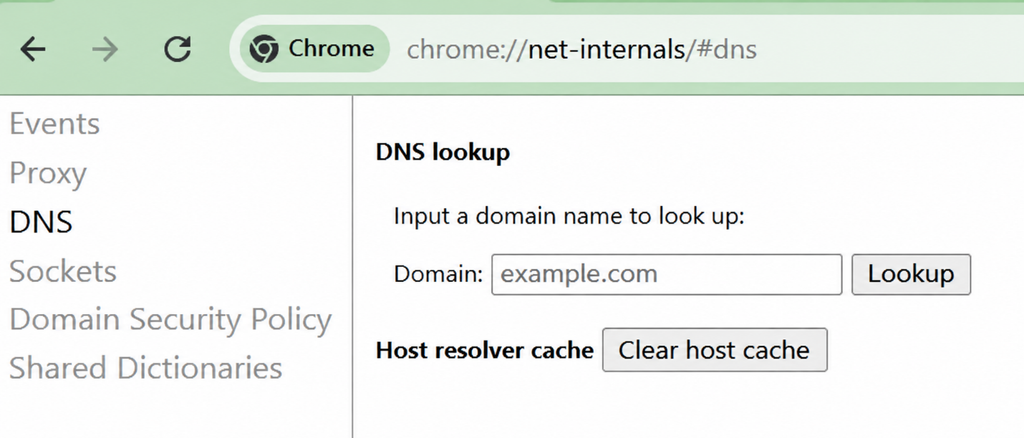
- Reload the site: Ctrl+F5 on Windows, Cmd+Shift+R on Mac.
If that doesn’t fix it, flush the socket pool too.
– Go to chrome://net-internals/#sockets and click Flush socket pools.

– Chrome keeps open connections alive for speed, and a dead one can hang around after the DNS entry changes.
Flush the DNS Cache at The OS Level
Chrome’s cache is one layer. Windows, macOS, and Linux each keep their own.
Windows: Open Command Prompt as administrator. Run:
ipconfig /flushdns
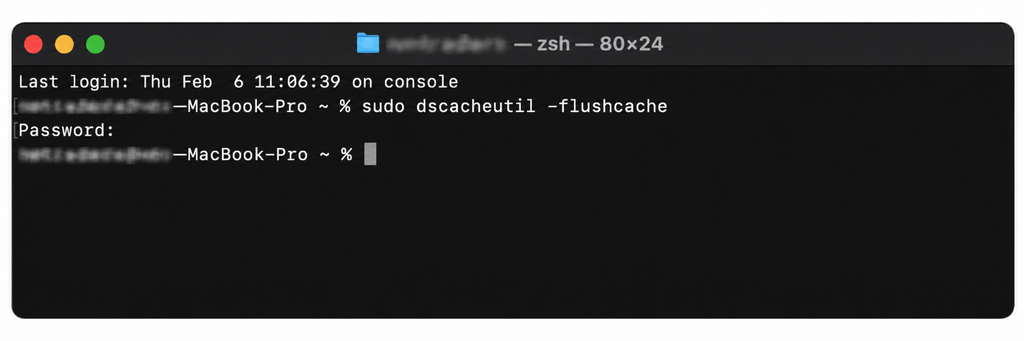
macOS: Open Terminal. Run:
sudo dscacheutil -flushcache
Enter your password when prompted.
Linux: Open a terminal. Run:
sudo systemd-resolve –flush-caches
On distros without systemd-resolved, the command is sudo resolvectl flush-caches instead.
Reload the site after each step. Don’t skip straight to the OS flush, clearing Chrome’s cache first rules out half the possible causes in 10 seconds.
If Google Chrome Net Internals DNS Error Keeps Coming Back
The steps above fix a one-time stale entry. If the same site keeps failing after every flush, something’s actively causing it, not just leftover cache.
Check Secure DNS
Go to chrome://settings/security, scroll to “Use secure DNS.”
If it’s pointed at a specific provider (Cloudflare, Google, etc.) and that provider’s endpoint is blocked on your network, every lookup through it fails.
Switch to “With your current service provider” and test again.
Restart Your Router
Your router caches DNS too, and if its cache is out of sync with the actual record, flushing Chrome and your OS won’t matter.
Power it off for 30 seconds, turn it back on, and test again.
Switch DNS Providers
Your ISP’s default DNS server is sometimes slow or unreliable. Switching to 1.1.1.1 (Cloudflare) or 8.8.8.8 (Google) fixes it for a lot of people, and it’s permanent, not a one-time flush.
- Windows: Network settings → your connection → Properties → Internet Protocol Version 4 (TCP/IPv4) → Properties → enter the DNS addresses manually.
- macOS: System Settings → Network → your connection → Details → DNS → add the addresses.
- Linux: edit /etc/resolv.conf and set nameserver 1.1.1.1.
Check Your Antivirus Or Firewall
Some security software intercepts DNS traffic to scan it, and a bad rule blocks legitimate lookups. Temporarily disable it and test.
If that fixes it, the fix is in the software’s settings, not on your network.
Which Chrome://net-internals Fix To Try First: A Decision Tree
Skip the guesswork. Match what you’re seeing to the fix.
| What you see | Try this first |
|---|---|
| Error says DNS_PROBE_FINISHED_NXDOMAIN | Check the URL for a typo. If it’s correct, the domain may be expired or unregistered. Not a cache problem. |
| Error says ERR_NAME_NOT_RESOLVED, and a reload sometimes fixes it | Clear host cache in chrome://net-internals/#dns |
| Same error, clearing host cache didn’t help | Flush the OS-level DNS cache (ipconfig /flushdns or the Mac/Linux equivalent) |
| Only fails on Chrome, works fine in another browser | Check Secure DNS at chrome://settings/security. Switch it to “With your current service provider.” |
| Fails on every browser, every device on the network | Restart your router. If that doesn’t fix it, your ISP’s DNS server may be down. |
| One specific site always fails, everything else works | The domain’s own DNS records are likely wrong. This is on the site owner’s end, not yours. |
| Works on Wi-Fi, fails on mobile data (or the reverse) | Confirm it’s DNS and not a network-specific block. Switch DNS provider to 1.1.1.1 or 8.8.8.8 to test. |
Secure DNS
Chrome has shipped Secure DNS, also called DNS-over-HTTPS or DoH, as a default feature since 2020.
Secure DNS encrypts your DNS lookups so your ISP can’t see which sites you’re visiting in plain text. Good for privacy. Also, a source of this exact error that older troubleshooting guides don’t cover, because they predate the feature.
Here’s the mechanism.
Normally, Chrome asks whatever DNS server your network hands it, usually your router or ISP. With Secure DNS turned on and set to a specific provider, Chrome instead sends every lookup to that provider’s encrypted endpoint.
If that endpoint is unreachable, because your network firewall blocks it, the provider is having an outage, or a VPN is interfering, Chrome gets no answer and throws ERR_NAME_NOT_RESOLVED. Your actual internet connection is fine. The DoH channel isn’t.
To check it: go to chrome://settings/security, scroll down to “Use secure DNS.” You’ll see one of three states:
- Off. Not the cause.
- With your current service provider. Chrome tries to use your ISP’s DoH endpoint if it supports one, falling back to regular DNS if not. Rarely causes issues.
- With a custom provider. Chrome is locked to whichever provider you picked (Cloudflare, Google, OpenDNS, etc.), no fallback. If that specific endpoint is blocked or down, every lookup through it fails.
If it’s set to a custom provider and you’re hitting this error, switch it to “With your current service provider” and reload. If the site loads immediately, that was the cause.
This also explains a pattern that confuses people: the exact same URL works fine on their phone (different network, different DNS path) but fails on their work laptop. Corporate firewalls frequently block DoH endpoints specifically, because they need to inspect DNS traffic for security monitoring, which breaks Secure DNS silently instead of showing a clear error.
How to Prevent Google Chrome Net Internals DNS error From Happening Again
The fixes above solve it once. These stop it from coming back.
Switch to a public DNS provider permanently
Cloudflare (1.1.1.1) and Google (8.8.8.8) both run faster, more reliable resolvers than most ISPs. Set it once at the OS level and every app on your machine benefits, not just Chrome.
Leave Secure DNS on “With your current service provider”
Leave secure DNS unless you have a specific reason to lock it to one provider. That setting has automatic fallback built in. A custom provider doesn’t.
Restart your router occasionally
Routers cache DNS too, and that cache doesn’t always clear on its own when a site’s records change. A monthly reboot catches problems before they show up as errors.
Keep Chrome updated. Google patches DNS handling bugs in regular releases. An outdated browser is more likely to mishandle edge cases in the DNS resolution process.

Last Word
If you’ve gone through the decision tree above and the site still won’t load, the problem probably isn’t on your end. Check whether the site is down for everyone at a service like downforeveryoneorjustme.com, or contact your ISP if every site is affected. A DNS error that survives a router restart, a cache flush, and a provider switch is usually a server-side or ISP-side issue, not something a browser setting fixes.