


WordPress user roles determine the level of access and control a logged-in individual has on your website. While some users can manage the entire site, others are limited to specific functions such as writing posts, editing existing content, or handling comment moderation.
To view the standard user roles provided by WordPress, navigate to the “Users” section within your WordPress admin panel.

By default, WordPress includes five primary user roles:
- Administrator
- Editor
- Author
- Contributor
- Subscriber
Imagine WordPress user role as the level of access in a school setting:
- The principal and janitor have full access to all areas of the school.
- Teachers can enter their own classrooms but not others or the principal’s office.
- Parents visiting the school are usually restricted to the main lobby.
What Does User Mean in WordPress?

A user in WordPress refers to anyone who has been registered on your site and can log in using their username and password. Visitors who are only browsing your site don’t need an account to do so.
As the site owner, you’re automatically registered as a WordPress user. You can also register others, allowing them to log in with their own credentials.
There are several reasons you might grant someone access to your site, such as:
- Letting a guest contribute a blog post
- Getting technical support from a developer
- Providing access to content on a membership-only page
However, just like in the school example, not everyone should have full access. You wouldn’t want a parent wandering into the principal’s office and tampering with records.
Similarly, you don’t want a user in a WordPress site with unrestricted access unless it’s necessary.
This is where WordPress user roles and WordPress plugins like New User Approve come in. These built-in features/plugins help you manage what users can and can’t do. It ensures your site stays safe and under control.
What are the Default User Roles That WordPress Provides
If you go to the website’s dashboard and then click on the “Users” tab, you will find WordPress’s different user roles in the drop-down menu under “Roles.”
The roles typically include Contributor, Author, Editor, Administrator, and Subscriber.
1. Administrator Role
In a typical WordPress setup, admin roles hold the highest levels of control over the site. This WordPress user role allows full access to all administrative features, including creating, editing, and removing posts for any user. Additionally, administrators can manage all plugins, themes, and widgets, installing or deleting them as needed.
When you launch a new WordPress site, the initial user is assigned the user admin role by default. This person determines who else can access the site and what specific actions they are permitted to perform.
Crucially, administrators can manage user accounts—adding new users, removing them, and updating existing information like passwords.
For WordPress multisite networks, there’s an even more elevated user role: the super admin. This admin role offers administrative privileges across the entire multisite network, not just individual sites.
2. Editor Role
Editors are granted comprehensive control over a website’s content. They can write, edit, publish, and delete posts, including those written by other users. A user role editor also handles comment moderation and management.
However, they don’t have access to core site functionalities like plugin management, theme customization, or user account creation.
3. Author Role
Authors are responsible for their own content. They can create, update, and publish posts, as well as delete any of their own published or unpublished content.
They can view comments on the site but lack the permissions to moderate, approve, or delete them. Authors also do not have access to backend features such as site settings, plugins, or themes.
4. Contributor Role
Contributors can write and edit their posts, but cannot publish them. They are also restricted from uploading media files, such as images, to their posts.
This user role doesn’t provide any access to your site’s settings, plugins, or theme options, making it a safer choice for one-time or occasional writers.
5. Subscriber Role
Subscribers have very limited access. They can log in to your site, edit their user profile, and update their password. They are not permitted to write or edit posts, manage comments, or access the user admin dashboard beyond their profile.
This role is particularly effective for websites that require user registrations, such as membership platforms or online stores.
WordPress’s default user roles are designed to suit a wide range of site needs. For example, on a news site, editors might oversee the content team, authors might contribute regular articles, and contributors might be used for occasional guest posts.
Still, you may find situations where customizing roles and permissions becomes necessary to better align with your site’s specific requirements.
Ultimately, granting access should be handled with caution. Limiting what users can do on your site helps protect it from unintended changes or security issues.
Thankfully, WordPress’s built-in user role mechanism gives you a reliable method to manage user role permissions effectively.
How to Create Custom User Roles in WordPress
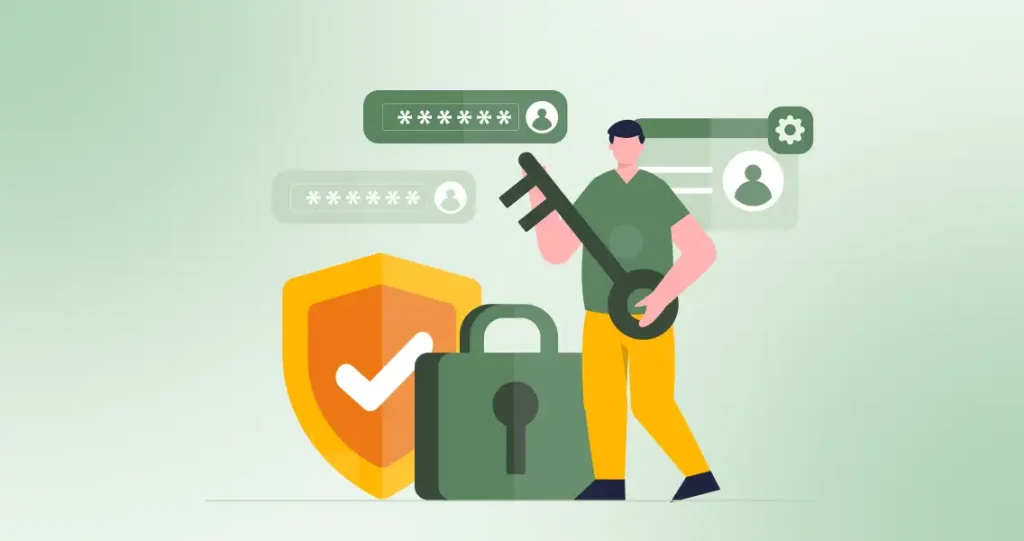
To create custom user roles in WordPress, you typically need a plugin like Members, which acts as a user role editor. This tool enables you to customize capabilities for each role by adding or removing specific permissions.
In addition to creating entirely new roles for tailored tasks, it also allows modification of existing user privileges.
For instance, you might want to restrict authors so they can only view or edit their own posts within the WordPress dashboard, or prevent them from publishing content altogether.
Some plugins, such as WooCommerce, automatically introduce custom roles like Shop Manager. This user role permits users to oversee the store’s operations without granting them full administrative access to the website.
You can also use dedicated plugins like New User Approve that manage user roles based on precise permission requirements.
How to Limit Content Access by User Role
There are times when you’ll want to make certain content available only to specific types of users. For instance, if you’re building a membership website, you may want only paying subscribers to view your exclusive courses, premium videos, or other members-only materials.
Creating a membership-based site used to be a time-consuming and complex process. In the past, setting up user roles, user admin roles, managing subscriptions, and handling payment processing required significant technical effort.
Fortunately, modern WordPress membership plugins simplify the entire setup. These tools allow you to build and manage a membership platform with ease.
Among the top choices is MemberPress, a widely used plugin known for its powerful capabilities. It offers everything needed to create a fully functional membership site in minutes.
With MemberPress, you can set up multiple membership tiers, define pricing models, manage user profiles, and restrict content based on membership level effortlessly.
This WordPress plugin comes with integrated support for PayPal and Stripe, enabling your members to process payments safely and securely online.
Final Words
We hope this post gave you valuable insights into a user role in WordPress. Setting up the right user roles in WordPress helps keep your site safe while letting people do their jobs. Your site might be a news page, a club with members, or a shop; each needs different kinds of users with their own jobs. As your WordPress site grows, check your user admin setup often to ensure it still fits your needs.


